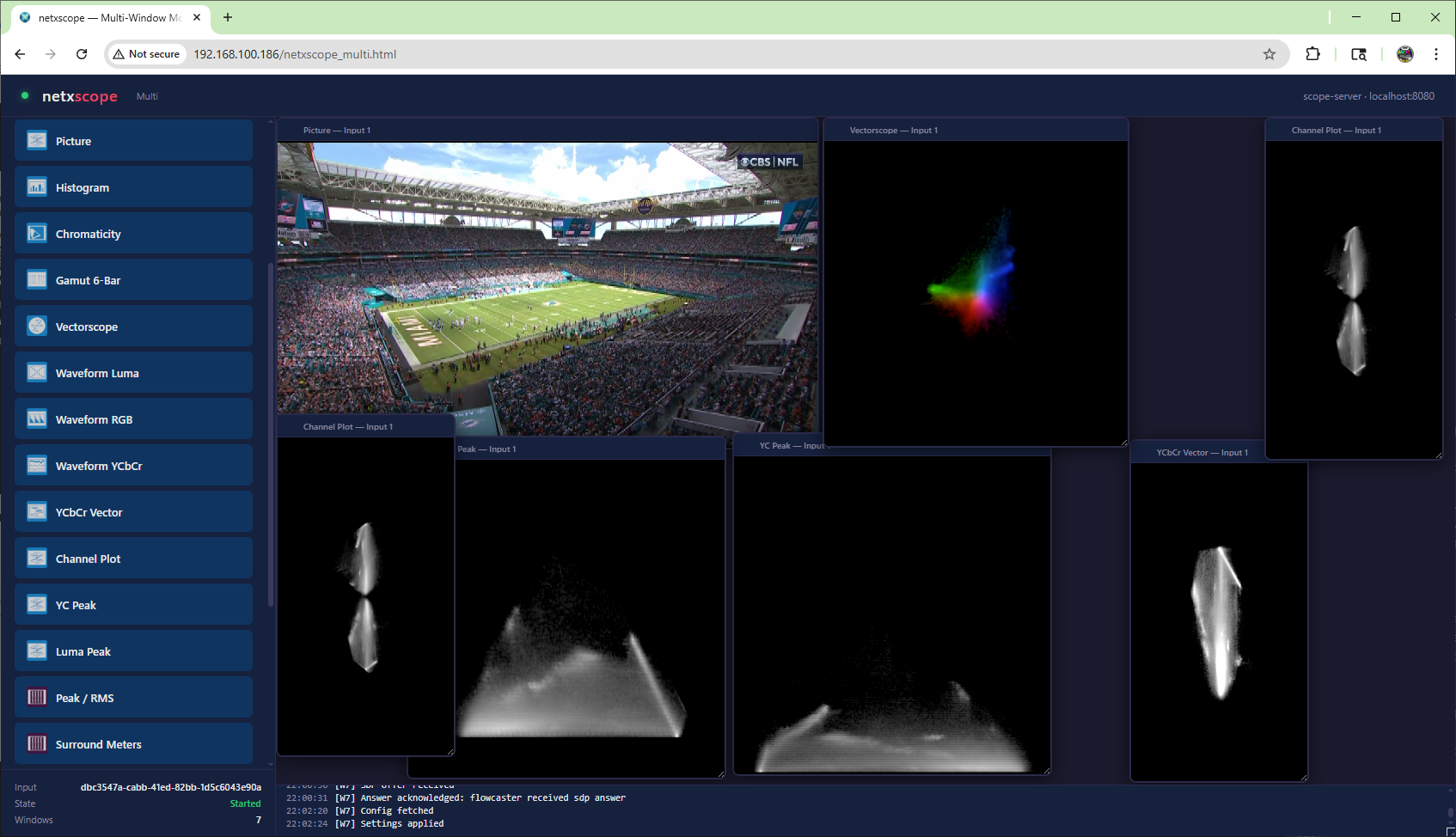
 NetXScope Server provides a comprehensive set of signal monitoring and analysis tools that can be accessed in a browser. Designed the enterprise working with both IP-connected and SDI systems, shared infrastructure, and remote teams, NetXScope Server provides immediate access to professional analysis tools without a local software install. Users can open live or file-based sources, inspect them in real time, and launch the instruments needed to verify signal integrity, isolate faults, and confirm corrective action.
NetXScope - Ask for a DemoNetXScope provides a comprehensive set of monitoring and analysis tools for the enterprise. Flexible local or cloud deployment lets users on the network view the facility's IP stream, SDI/HDMI, and file based inputs through professional diagnostic instruments with no per-station install.
|
 |
|||||||||||||||||||||||||



Overview
Features
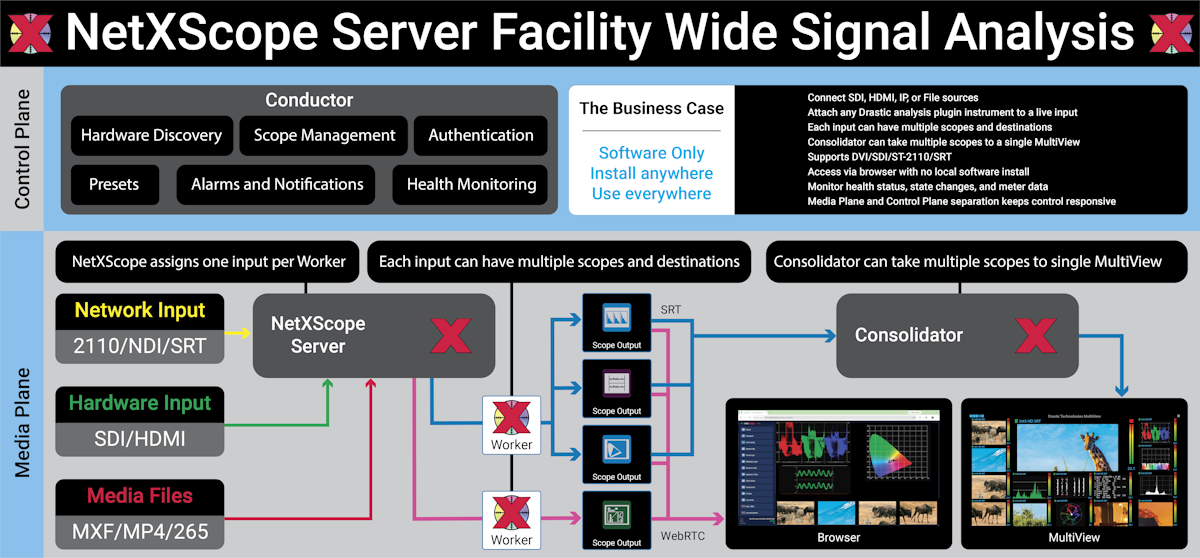
NetXScope Server creates a distributed, enterprise-class signal analysis solution for modern post-production and broadcast facilities. Flexible deployment from single instance to multiple bare metal or VM servers allows authenticated users anywhere on the network to monitor and diagnose audio, video, network, and ancillary data issues directly from a web browser or MultiView on baseband, ST-2110 or IP Video.
Enterprise Signal Analysis
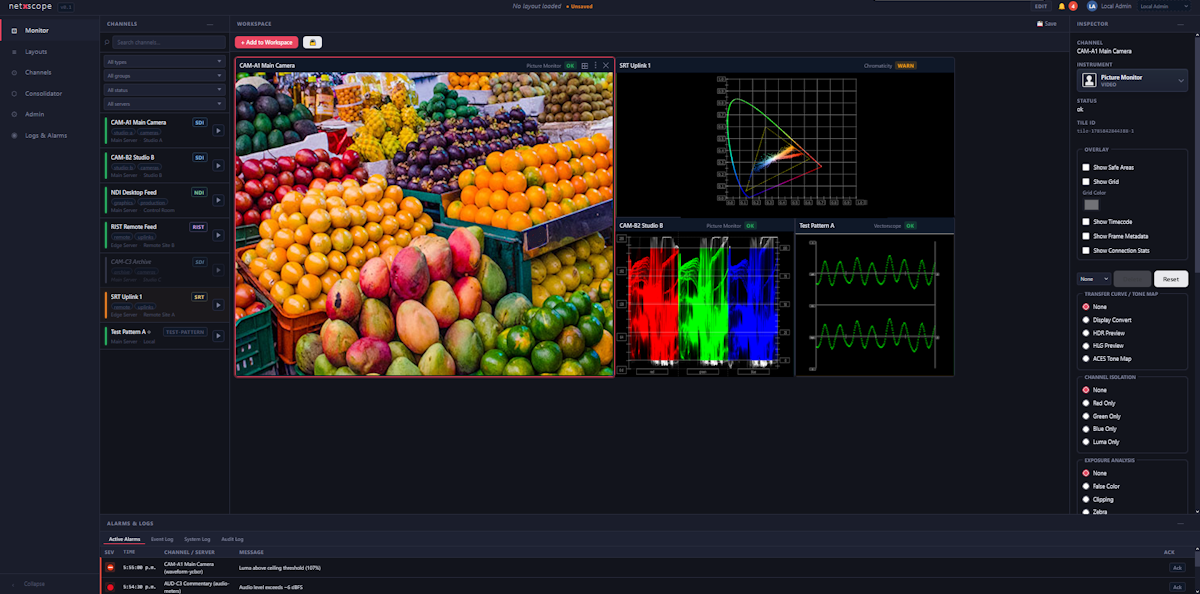
NetXScope Server supports SDI/HDMI, ST-2110/2022, IP, and file-based inputs. It provides teams with on-demand access to the largest set of analysis instruments in the industry. NetXScope includes waveform/vectorscopes, Chromaticity display, Audio scopes, A/V sync, Spectrum analysis, IP analysis, Ancillary data, Captions, ST-2110 timing, PTP, and other specialized signal and data analysis instruments. All tools and video are also available to NetXScope’s Consolidator servers. The Consolidator feature can take multiple scopes, video, and data, and provide a MultiView via DVI, ST-2110, SDI, or SRT for facility-wide monitoring. NetXScope Server also supports saved presets, allowing users to quickly recall standard diagnostic views for common workflows.
Distributed Workflows
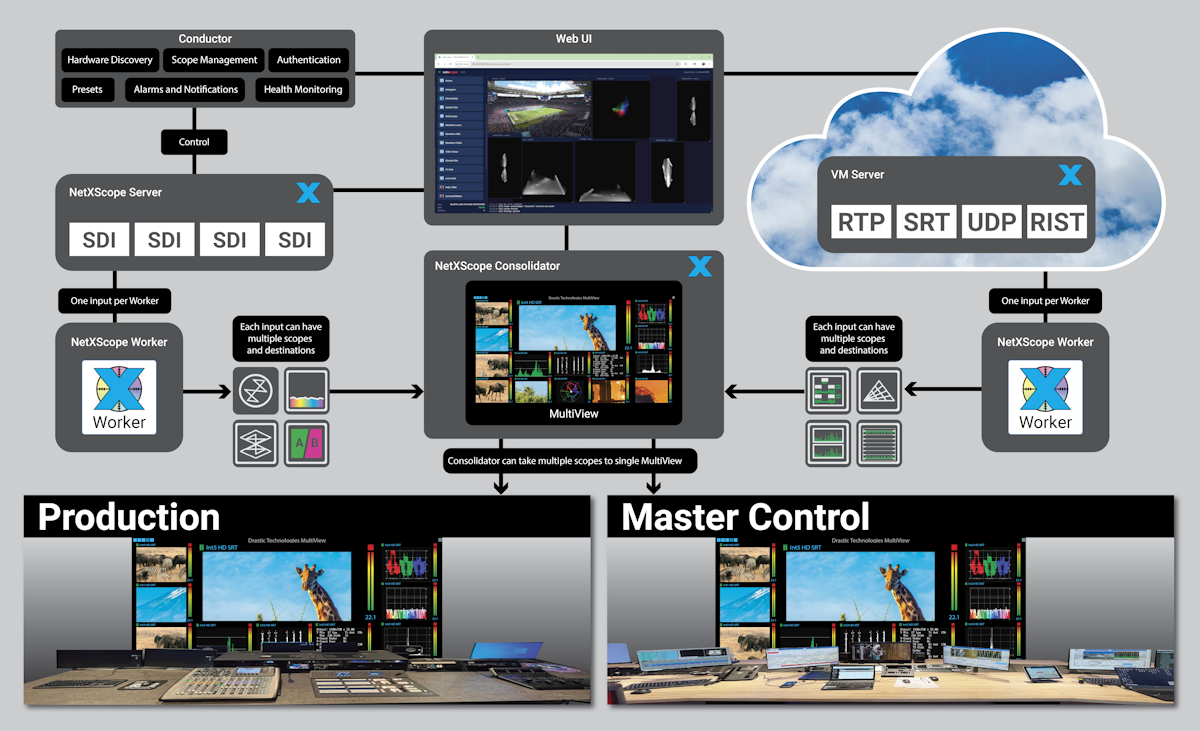
The platform is optimized for efficient shared use across technical teams. Processing resources are allocated only when instruments are in use, and released automatically when sessions end. Multiple viewers watching the same instrument share a common processing pipeline, improving scalability while minimizing unnecessary compute overhead. Separation of the Media Plane and the Control Plane keeps the control plane responsive, even under heavy load. Browser-based access minimizes deployment issues, and the Consolidator removes the need for separate MultiViews.
Consistent Deliverables
NetXScope Server combines Drastic’s unparalleled range of scopes and analysis instruments into a powerful set of monitoring tools for modern IP/IT infrastructure, supporting a wide range of workflows from mobile truck to enterprise level monitoring with browser based access and operation. With the whole team using the same set of tools, the enterprise can ensure consistent delivery across all departments.
Video
Video Analysis Tools
| (click button to view scope) | |||
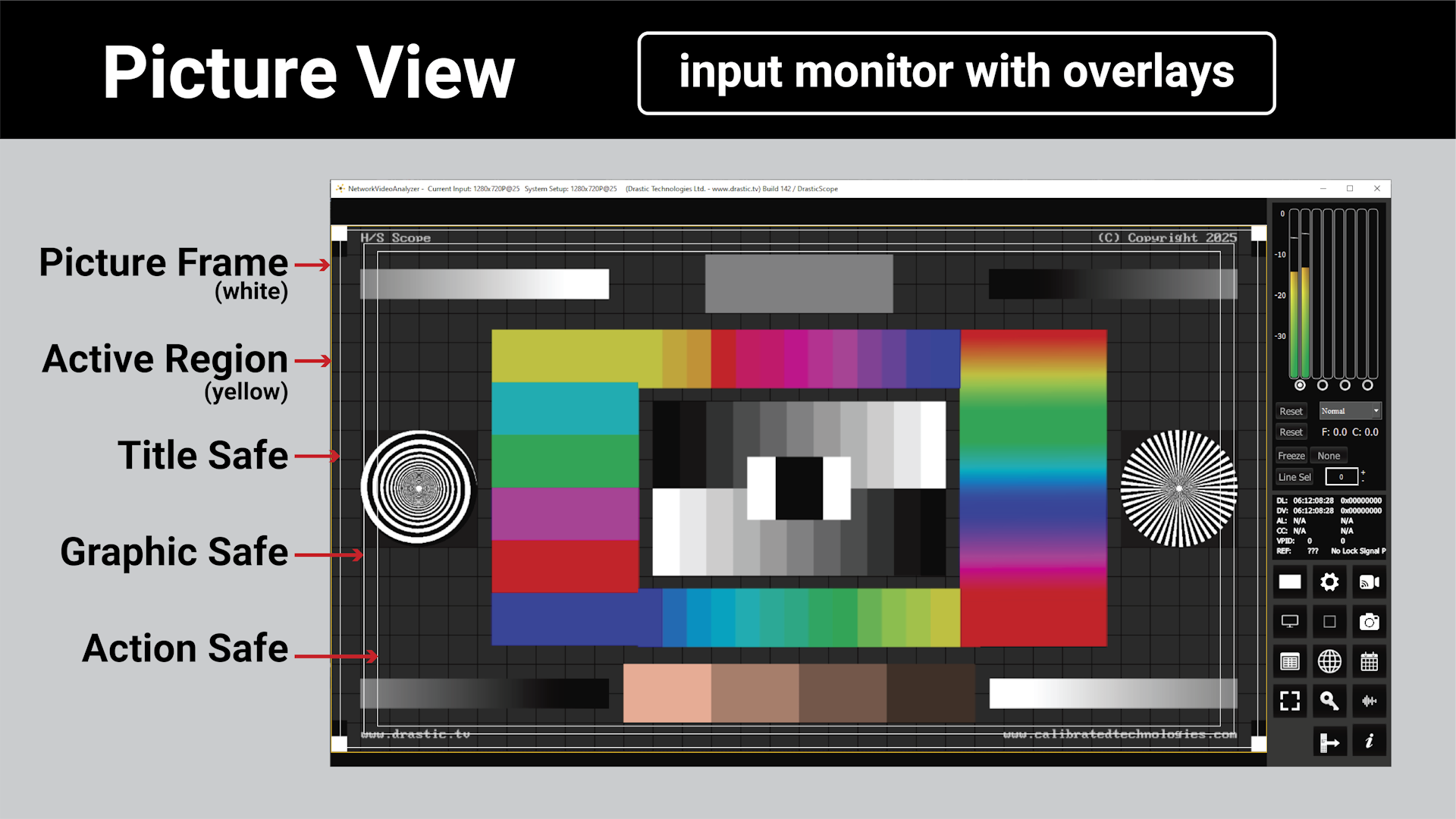 |
Picture View - The input signal is displayed for confidence monitoring, and overlays are provided for various framing constraints, including Action Safe, Title Safe, Graphic Safe, Picture Frame, and Active Region. |  |
|
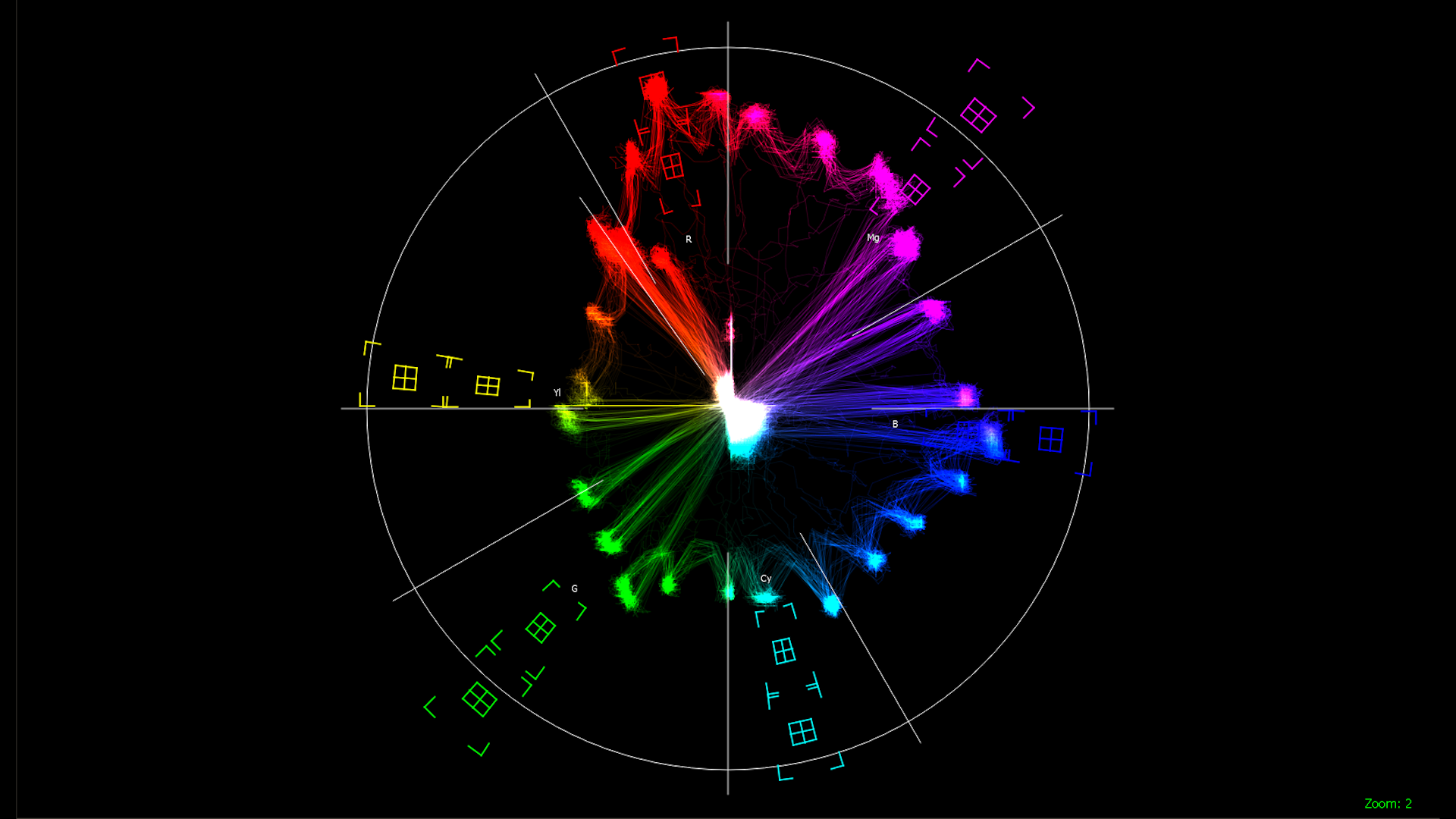 |
Vectorscope - Color accurate graticules automatically switch between SD (601), HD (709) and 4K/QHD (709 or 2020) color spaces. The markers include color points (for standard bar checks) at 75% and 100% saturation for all standard points; red, magenta, blue, cyan, green, and yellow. A skin tone/flesh line is provided to allow for easy hue adjustment as well as legacy -I and Q diagonals. |  |
|
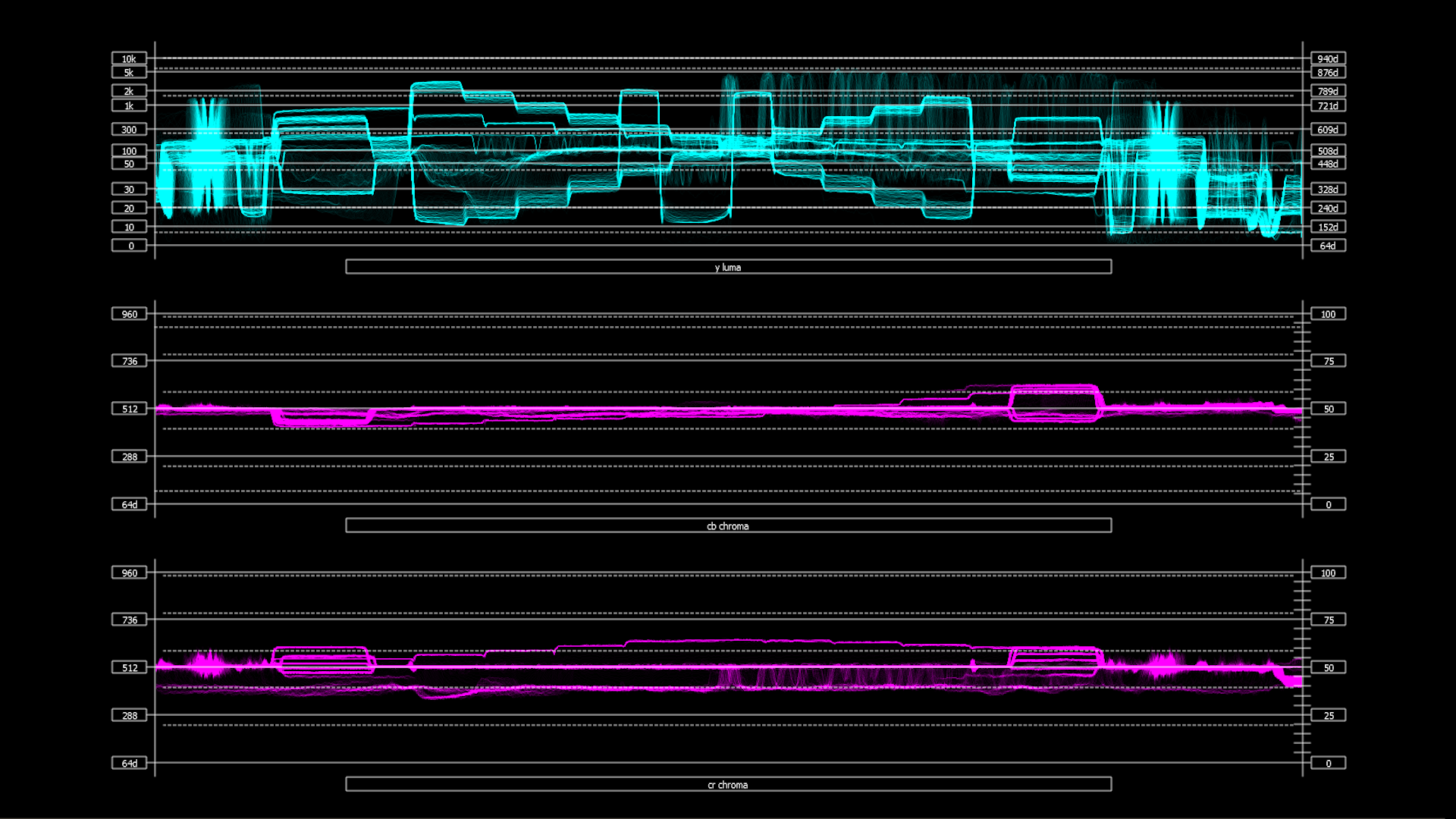 |
Waveform YCbCr - Displays the levels of the Y' (luma channel) on the top graph, and the Cb and Cr channels below. The Y graph provides accurate white and black level information, and the Cb and Cr show color difference levels. Stacked, Parade, Luma Only, and High/Low views are available. The luma waveform supports standard, HDR10 (Dolby Vision /ST.2084) and HLG (Hybrid Log Gamma) display up to 10,000 nits. |  |
|
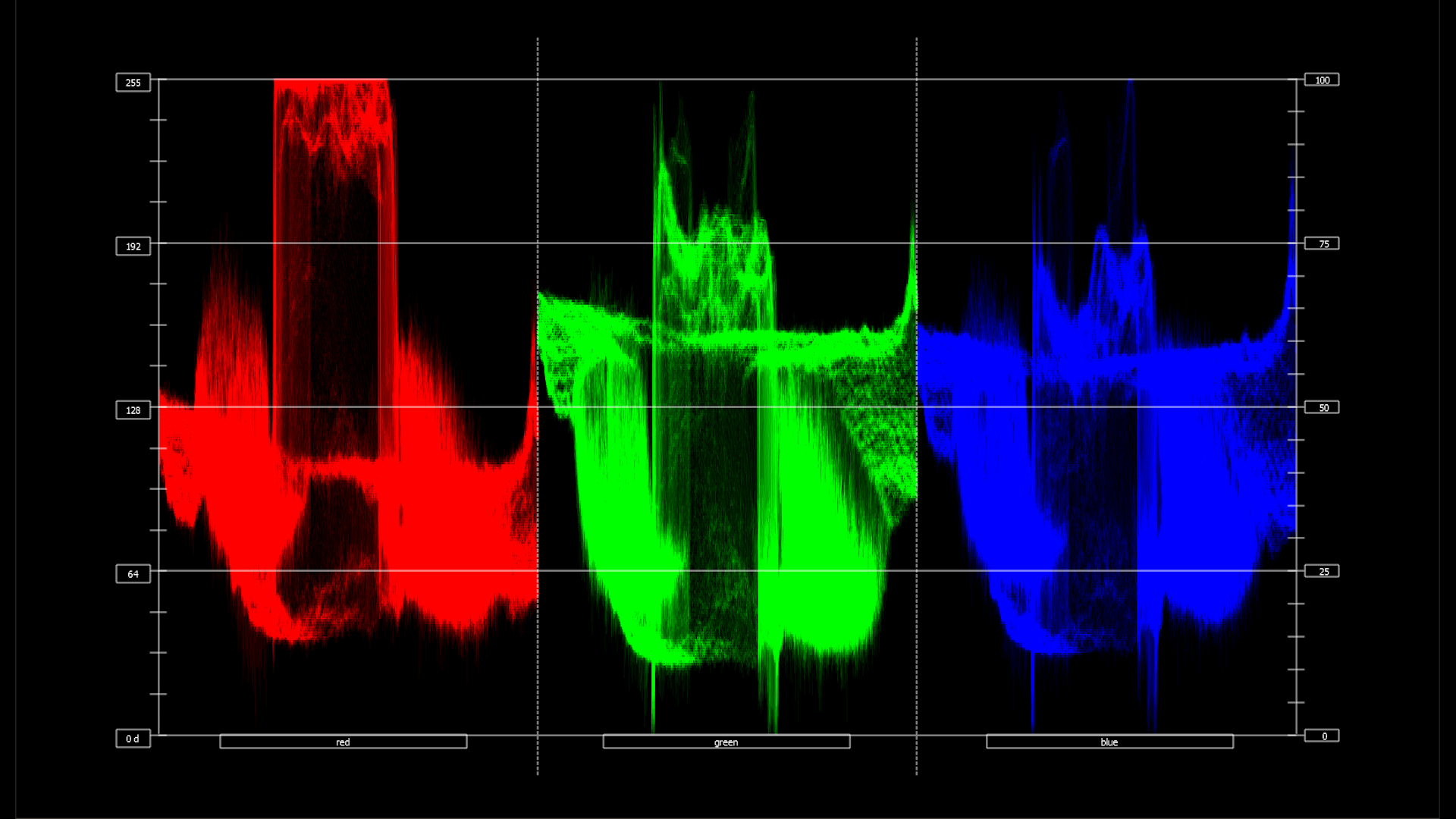 |
Waveform RGB - The RGB Waveform Monitor shows each of the red, green and blue signals as independent graphs, displaying the RGB, or chrominance/color values associated with the signal. Parade, Stacked and Overlay views are available. |  |
|
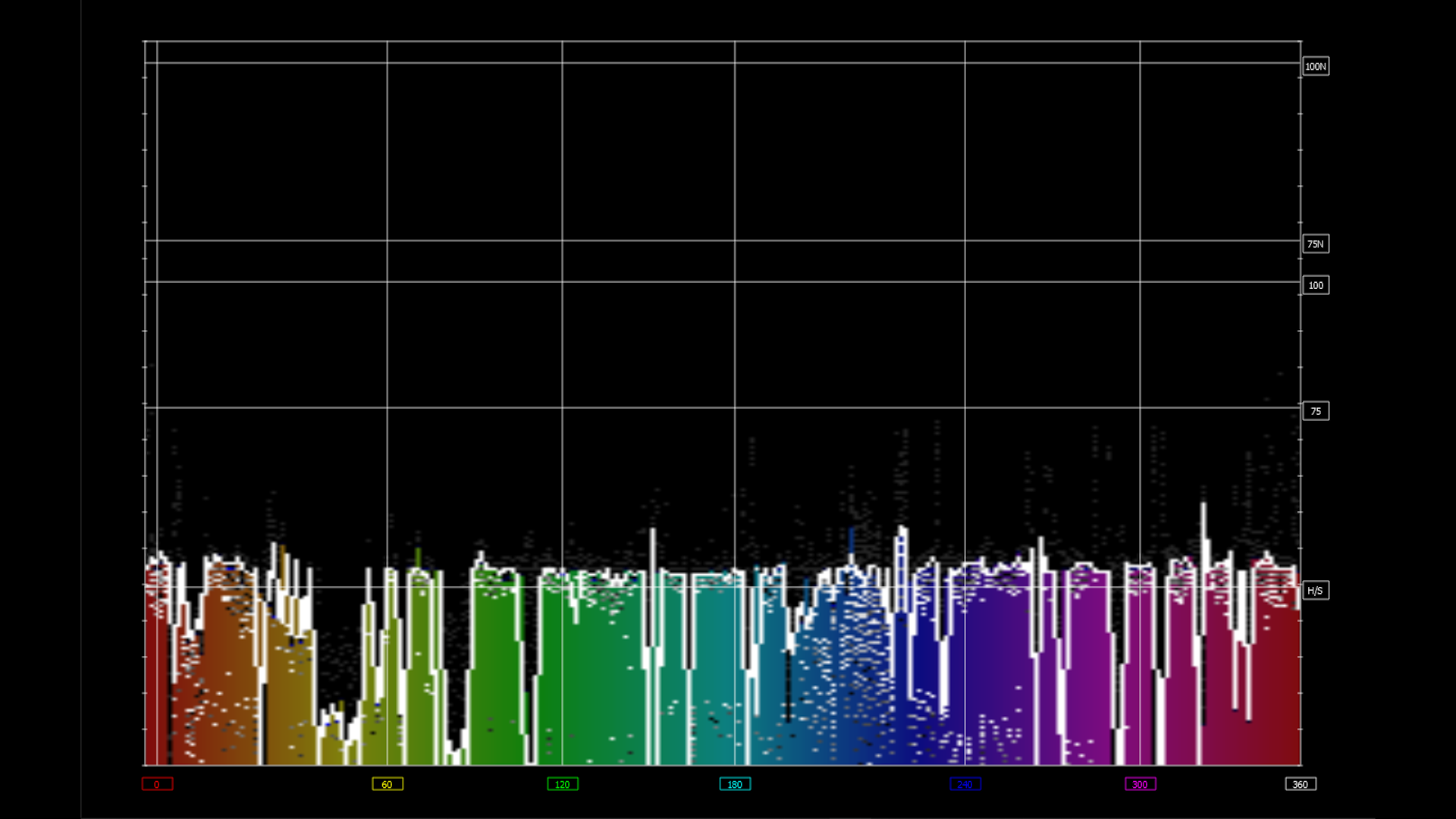 |
Histograms - a range of histograms are provided for intuitive visual analysis. Histogram types include YCbCr, RGB, HSV (hue saturation value), Luma-only, and Drastic's exclusive H/S Scope. |  |
|
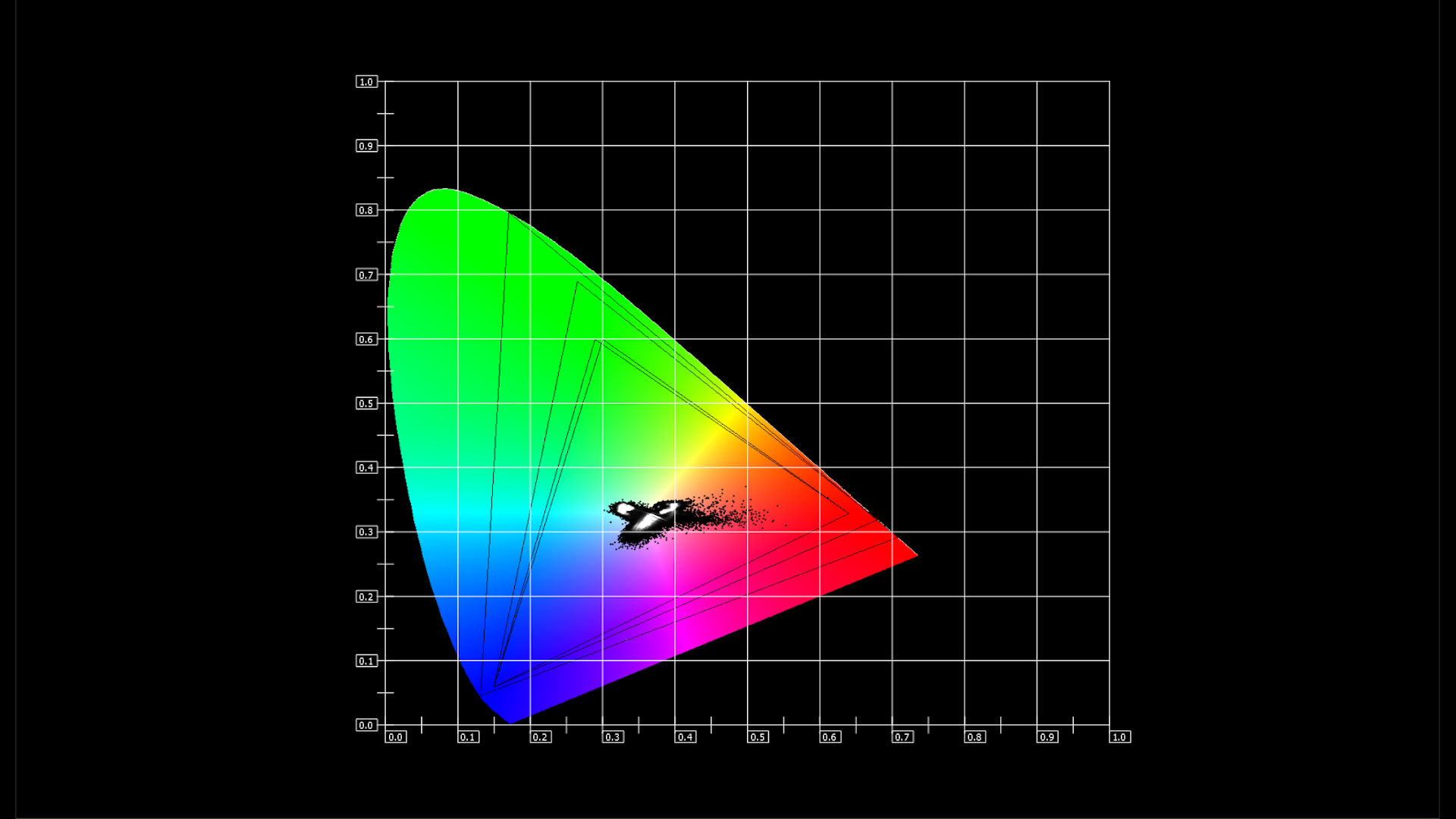 |
Chromaticity - The CIE XY Gamut, or Chromaticity display, provides a visual representation of the color in the signal across all the colors of visible light. For various YCbCr ranges including BT.2020, P3, Rec.709, CCIR-601, a triangle can be superimposed to show the colors that fall within the acceptable range and those that are outside it. |  |
|
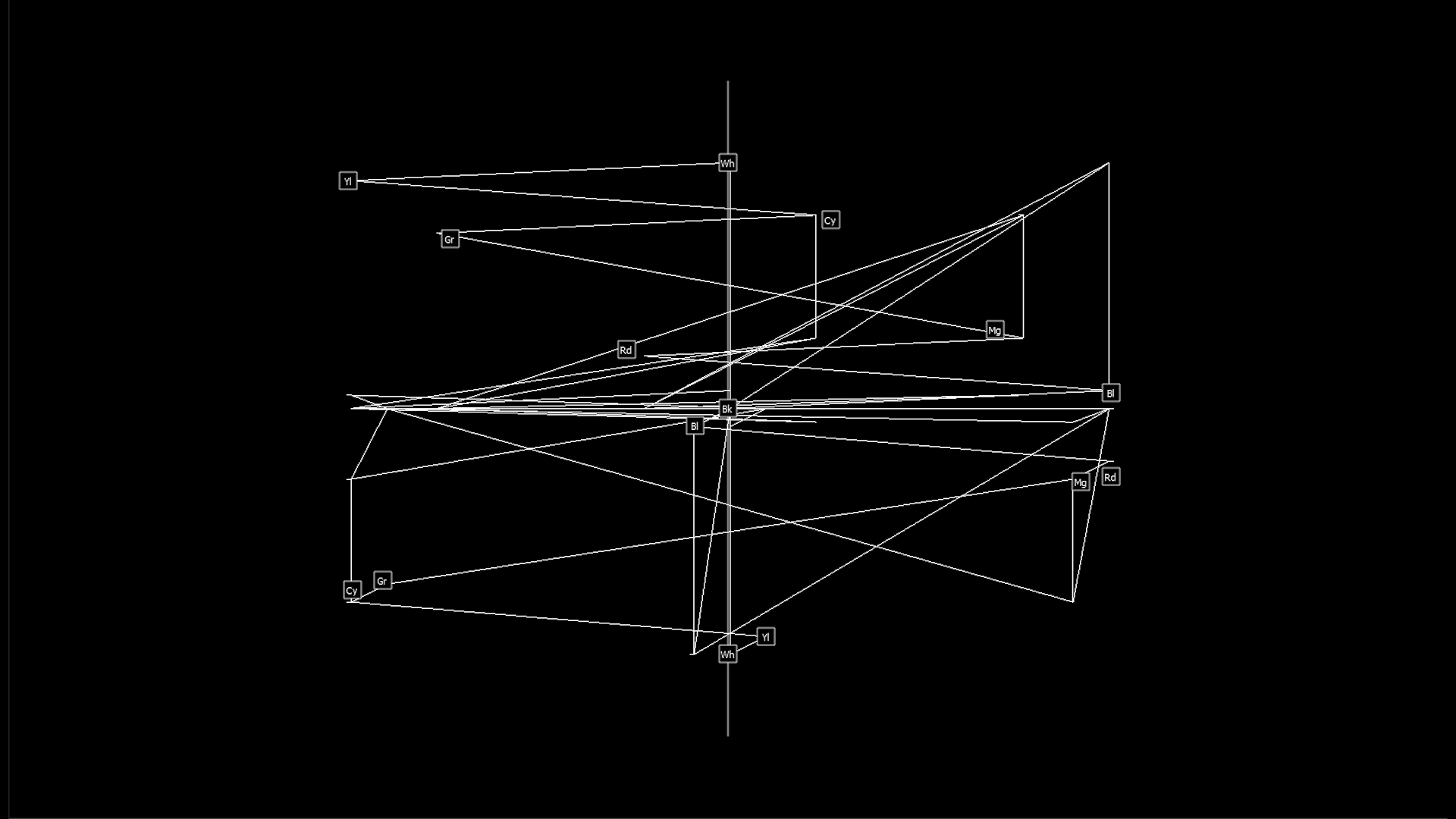 |
YCbCr Vectorscope - The YCbCr Vector scope plots the Y vs. Cb/Cr in the upper half and inverted Y vs. Cb/Cr in the lower half. The user can select between 75% marks and 100% marks, to provide a target for the primaries where a camera is looking at color bars or similar test pattern. |  |
|
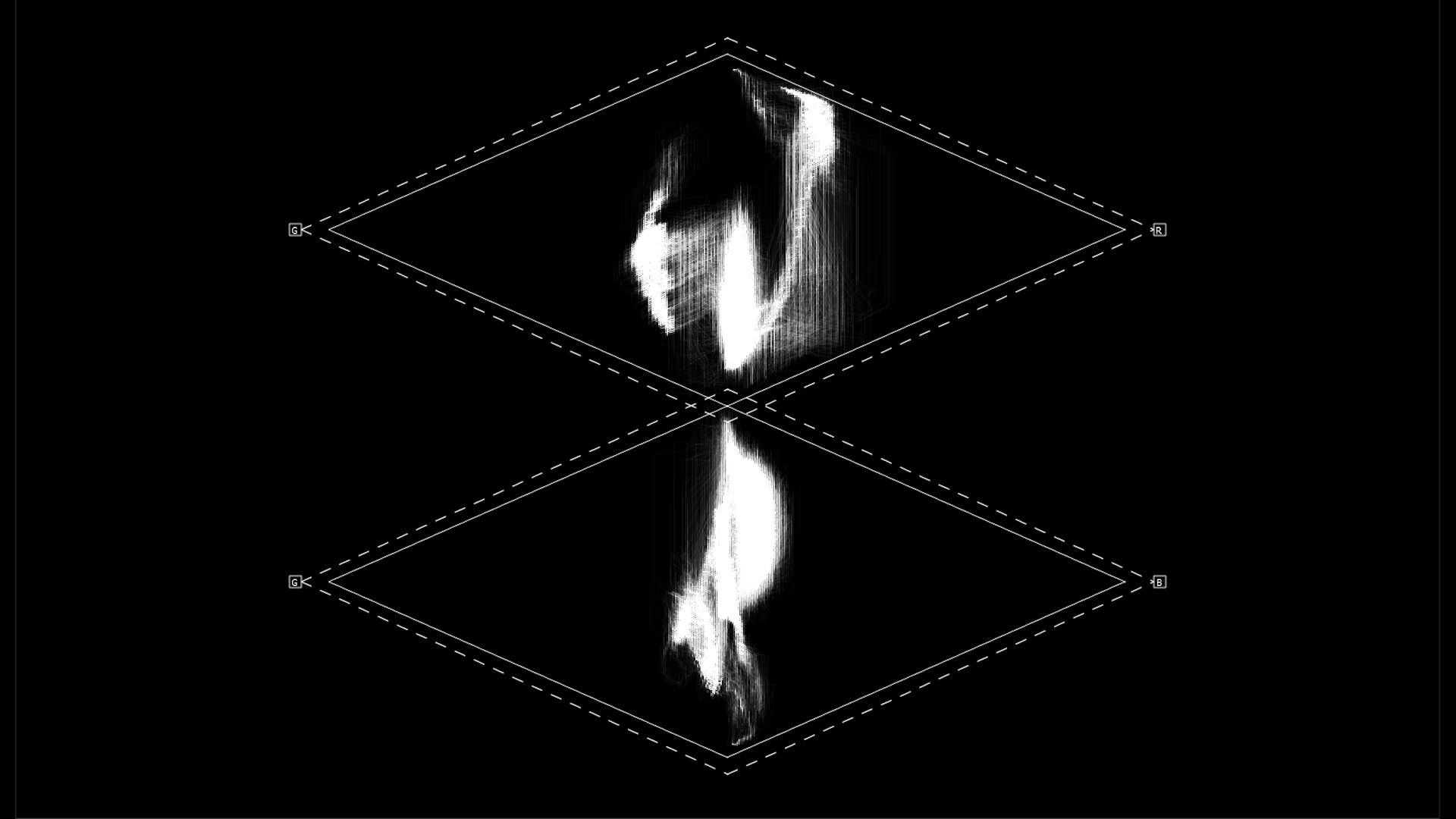 |
Channel Plot - The top parallelogram shows the levels of green component on the left and blue component on the right. The lower parallelogram shows the levels of green component on the left and red component on the right. Pure gray is indicated in the center of the broadest part of both parallelograms. If there is a color cast in the mid-tones or gammas, the trace will skew off to the left or the right. |  |
|
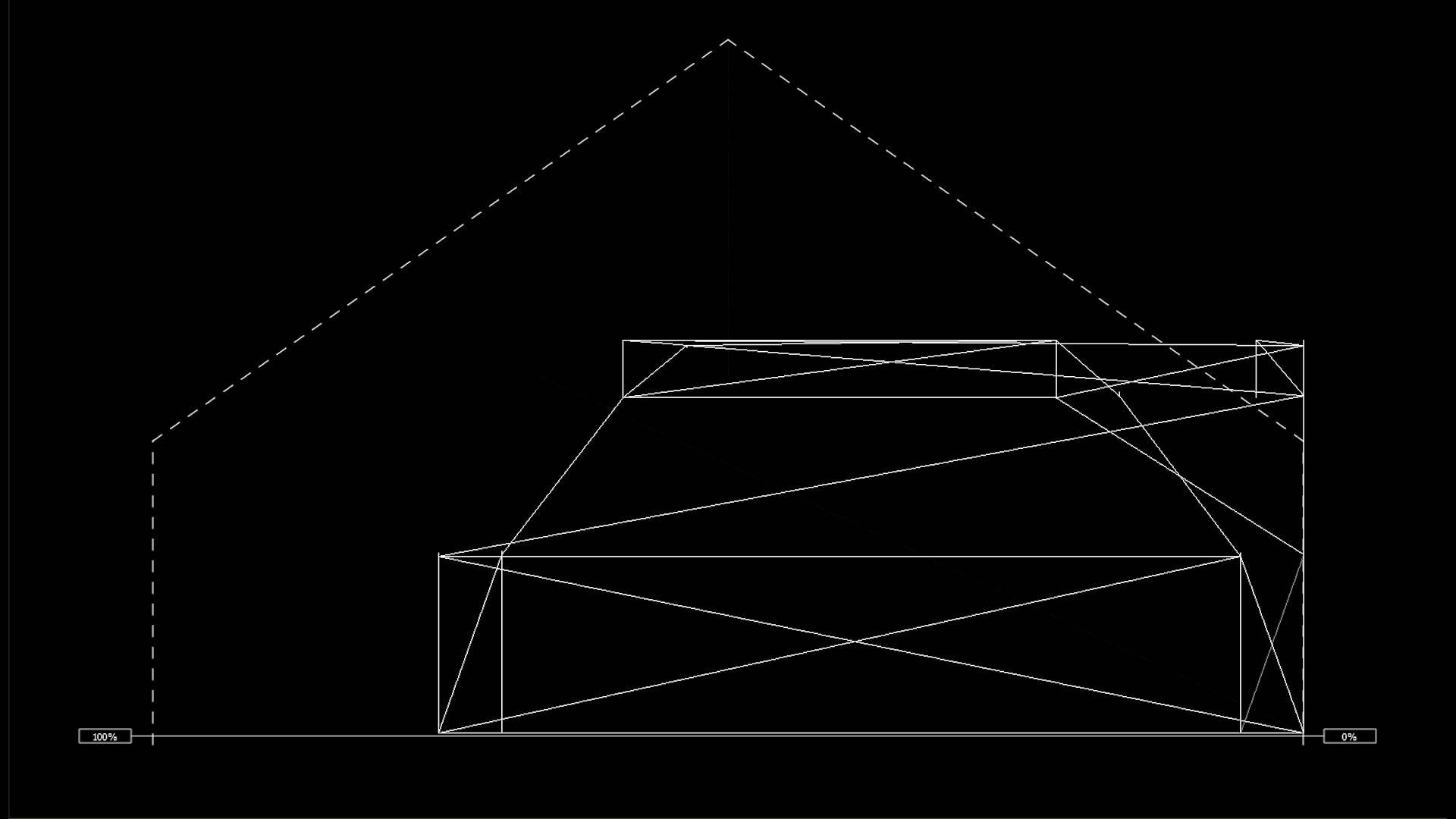 |
Y/C Peak - The Y/C Peak window shows all three channels in composite mode, and the relative strength of the levels from 100% to 0 at the right. This display shows luminance as a function of the sum of the R, G, and B channels, so the user can confirm the signal levels are legal and valid. |  |
|
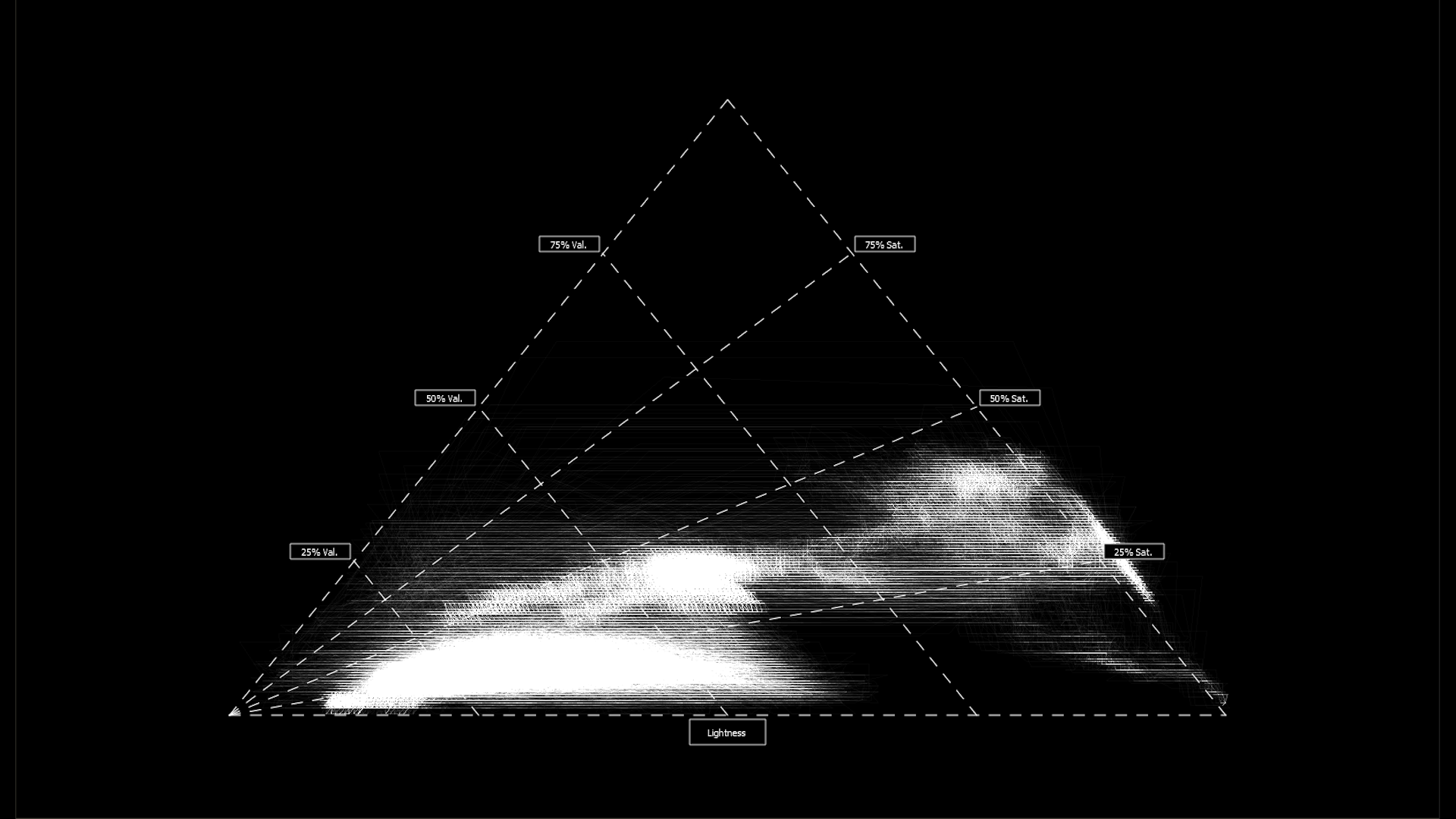 |
Luma Peak - The Luma Peak shows the color saturation and color value or lightness combined with RGB gamut limits. This allows a colorist to adjust live video signals in the HSV (Hue, Saturation, Value) space within the valid signal gamut range. This display plots the maximum of the R’, G’, and B’ color values for each sample versus the minimum of the three values. The resulting area is a triangle that represents the full RGB color gamut. |  |
|
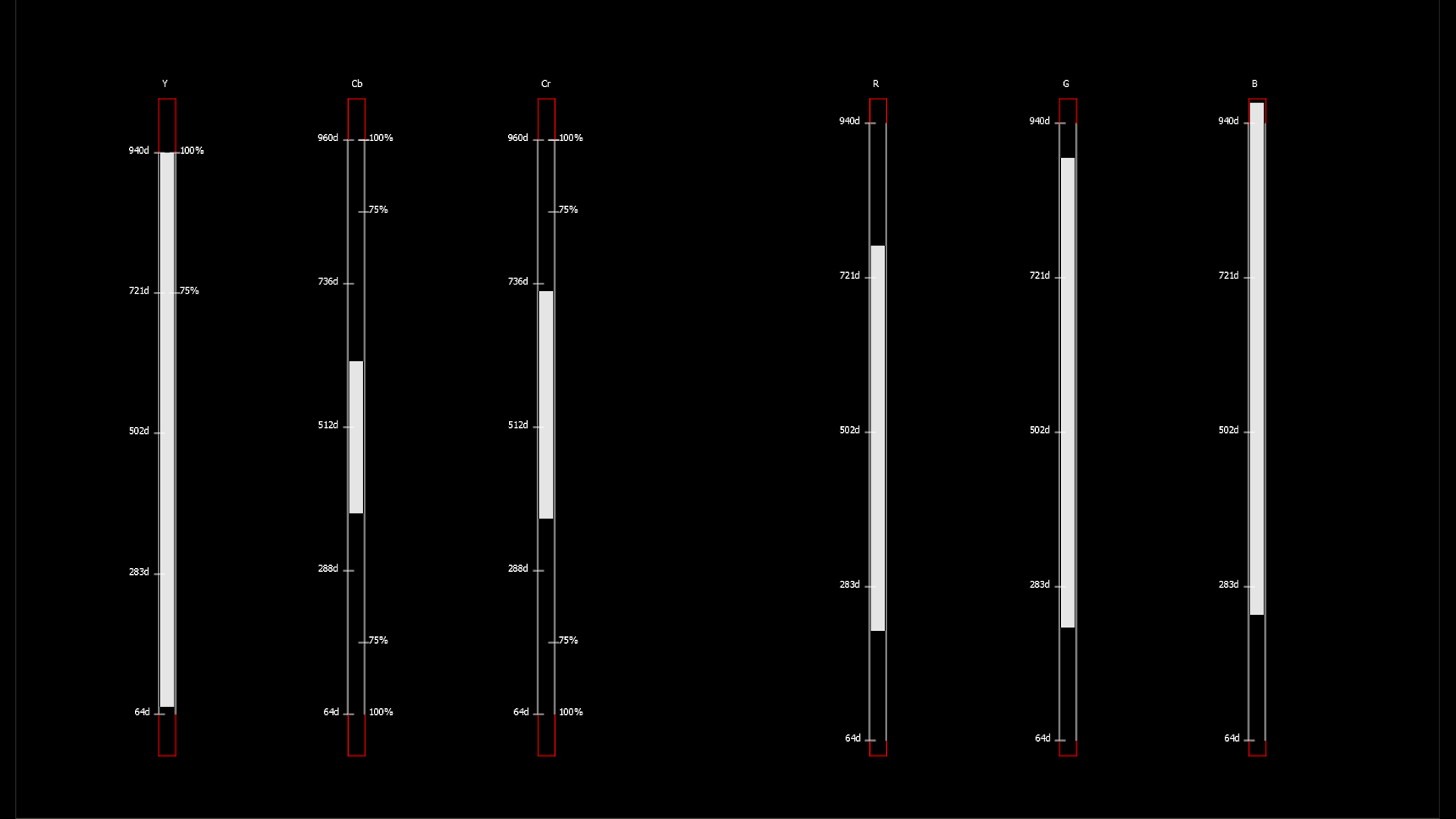 |
6 Bar Gamut - The 6 Bar Gamut shows a set of channel strength markers for both YCbCr and RGB modes. Equivalent values are created depending on the current setup. |  |
|
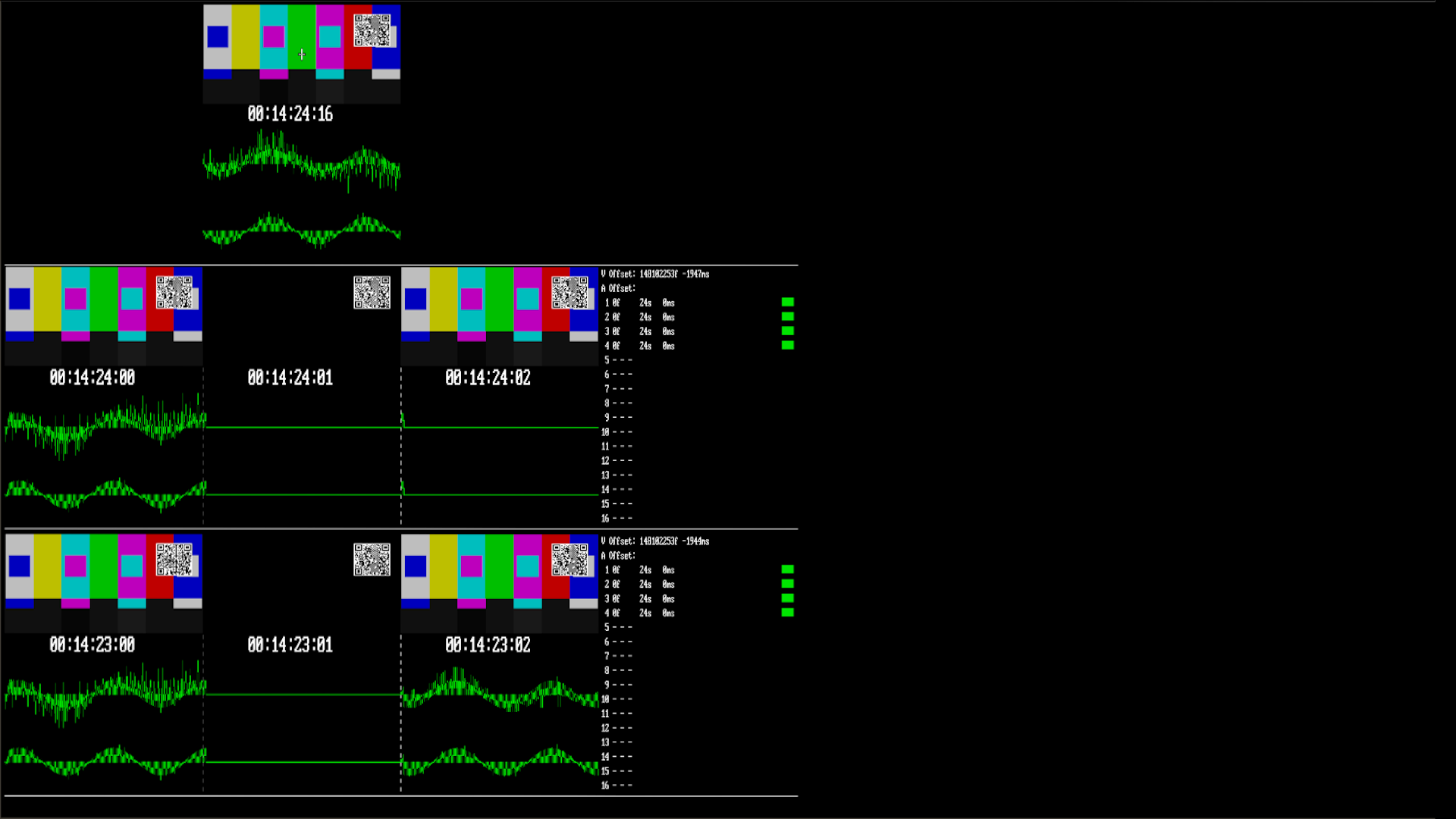 |
A/V Sync - NetXScope can use our Test Pattern Generator's A/V Sync patterns to provide details on audio and video sync in your signals, as well as time in transit, location, A/V format, etc. Other manufacturer's patterns are also supported, including BBC, Hitomi, Tektronix and others. |  |
|
Audio
Audio Analysis Tools
| (click button to view scope) | |||
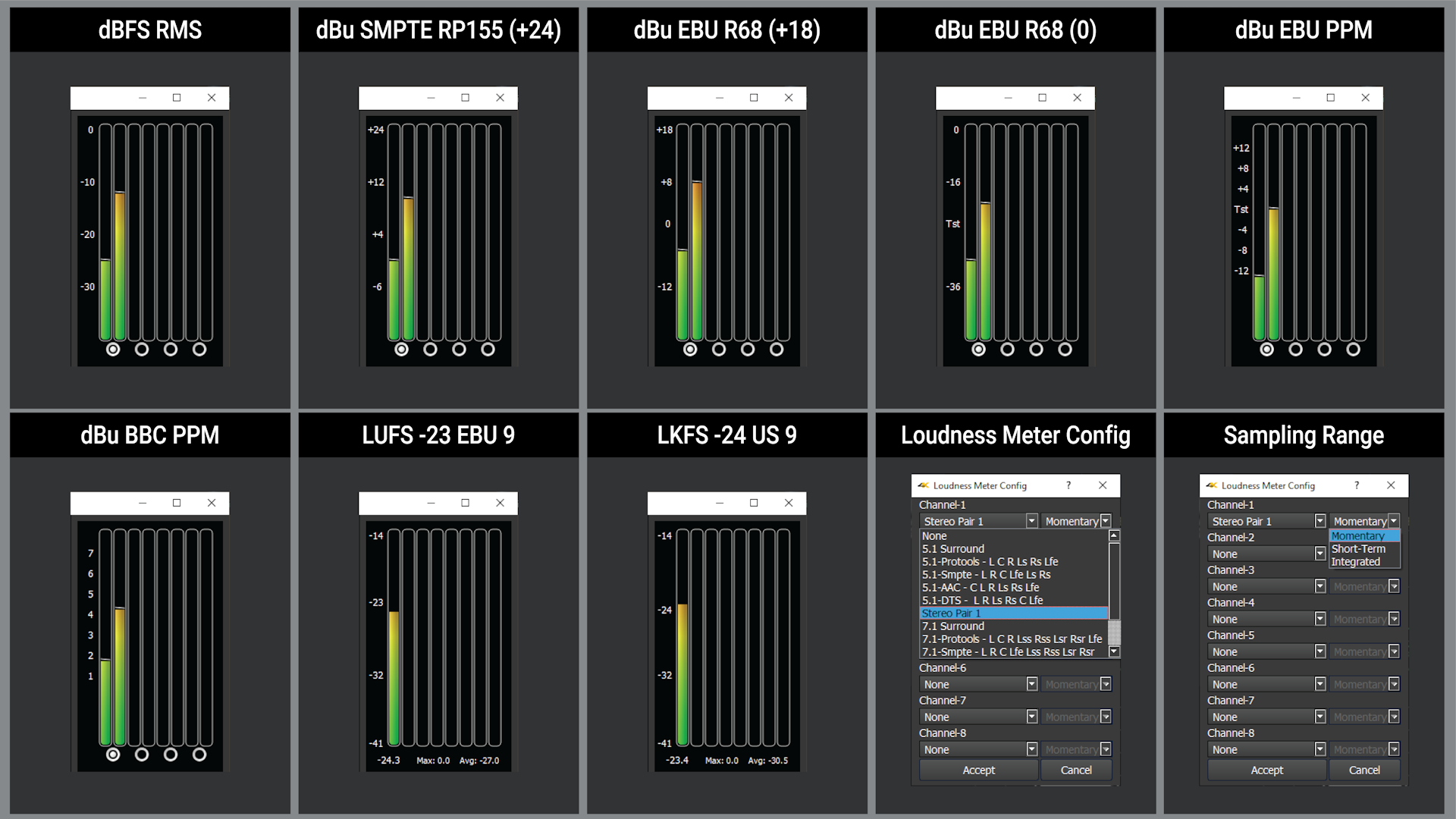 |
Audio Scale Settings - Audio Scale types include dBFS, dBu SMPTE RP155 (+24), dBu EBU R68 (+18 and 0), dBu PPM (EBU and BBC), and LUFS/LKFS (EBU and US). |  |
|
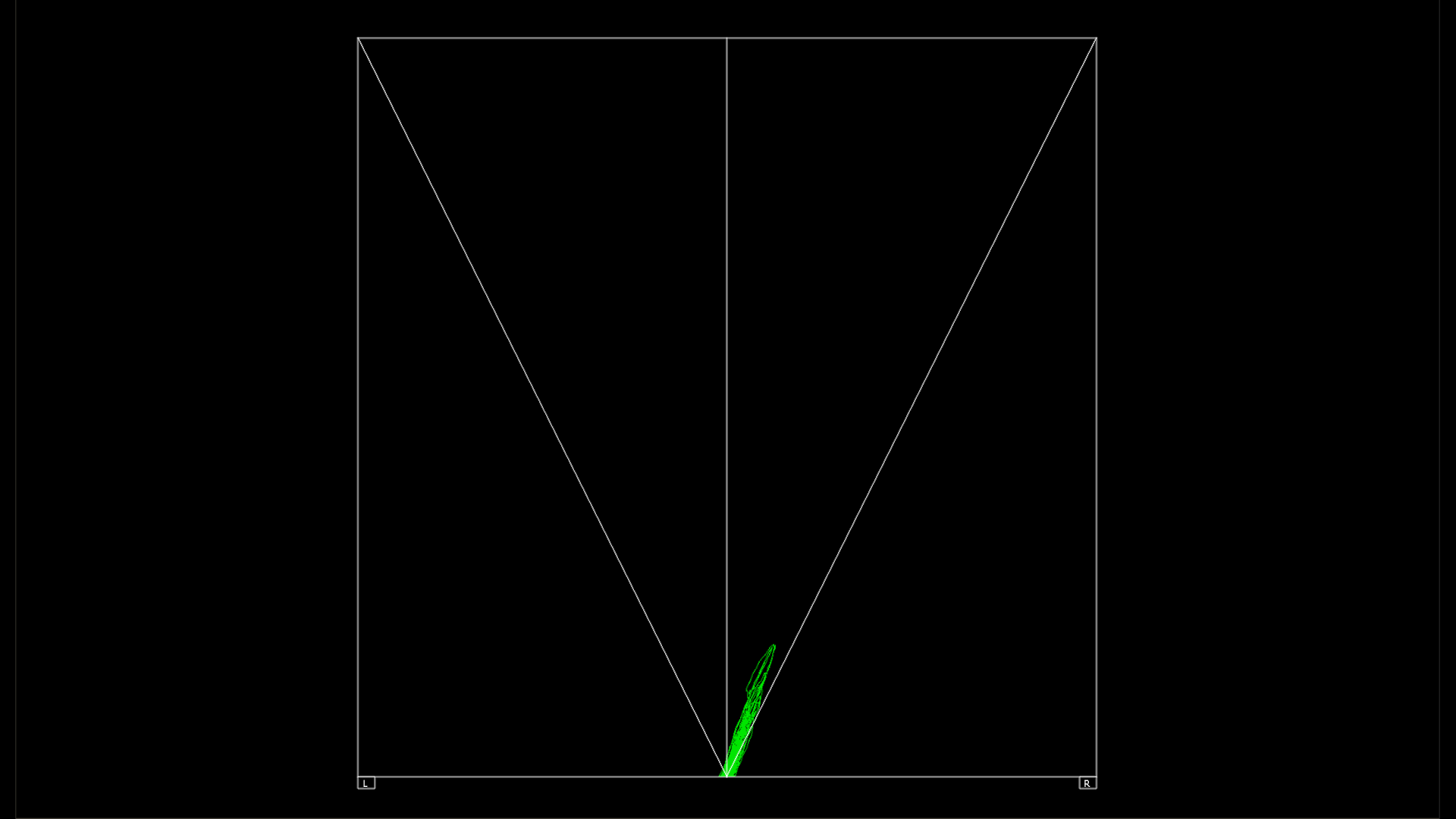 |
Audio Vectorscope - The audio vectorscope shows the relative density of the selected audio pair skewing toward the louder channel. The trace may be centered on the bottom middle (Polar), lower left to upper right axis (Lissajousxy), or center vertical axis (Lissajous) of the scope. | 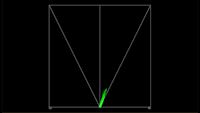 |
|
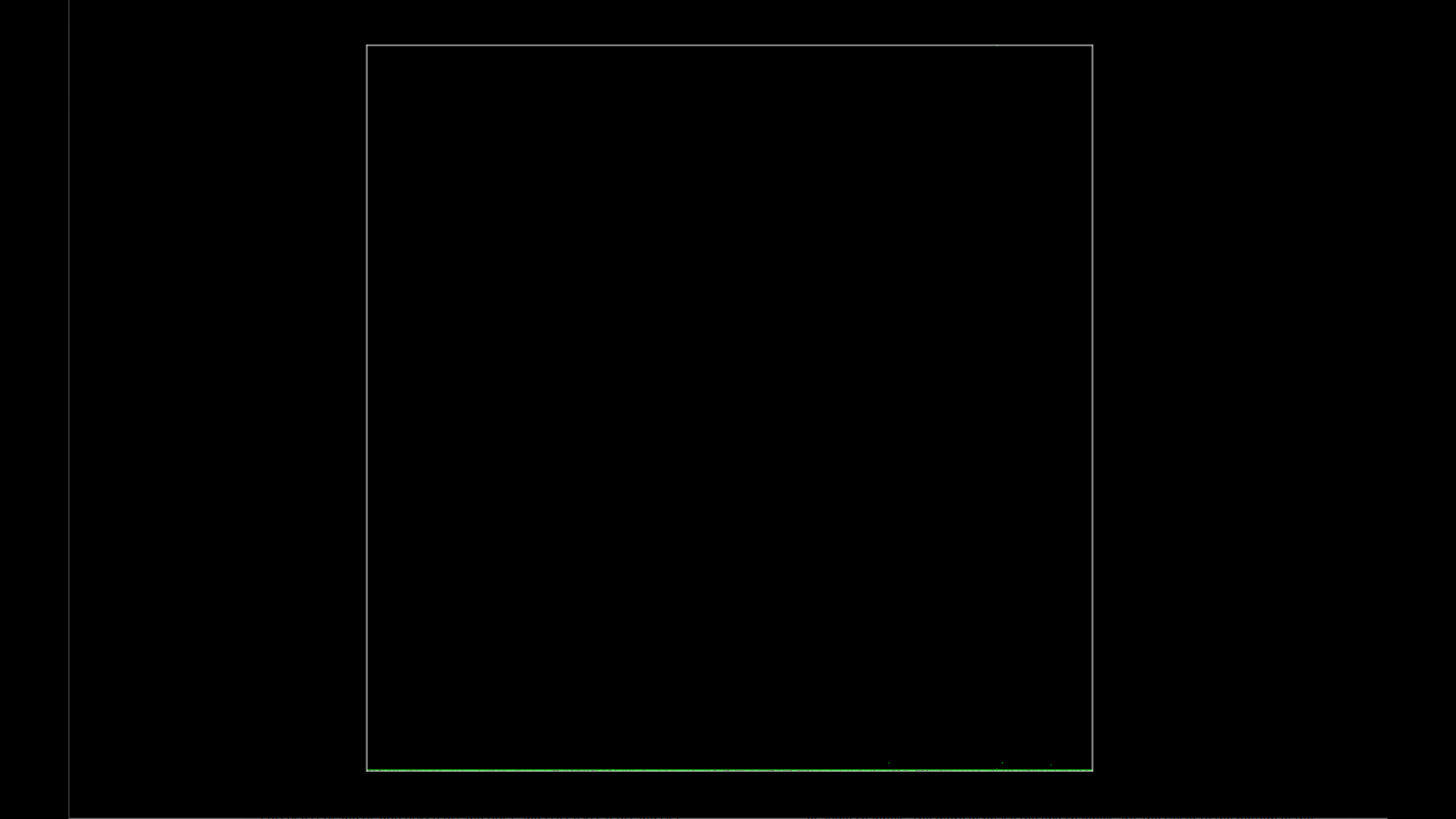 |
Audio Phase - The Audio Phase meter shows the phase relationship of the selected pair of audio channels. The more in-phase the two channels are, the closer to the bottom of the screen the green line will be. When the two channels are out of phase, the levels skew throughout the scope. Wildly out of phase channels will be distorted and 'perfectly' out of phase channels should cancel each other out. | 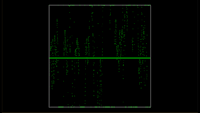 |
|
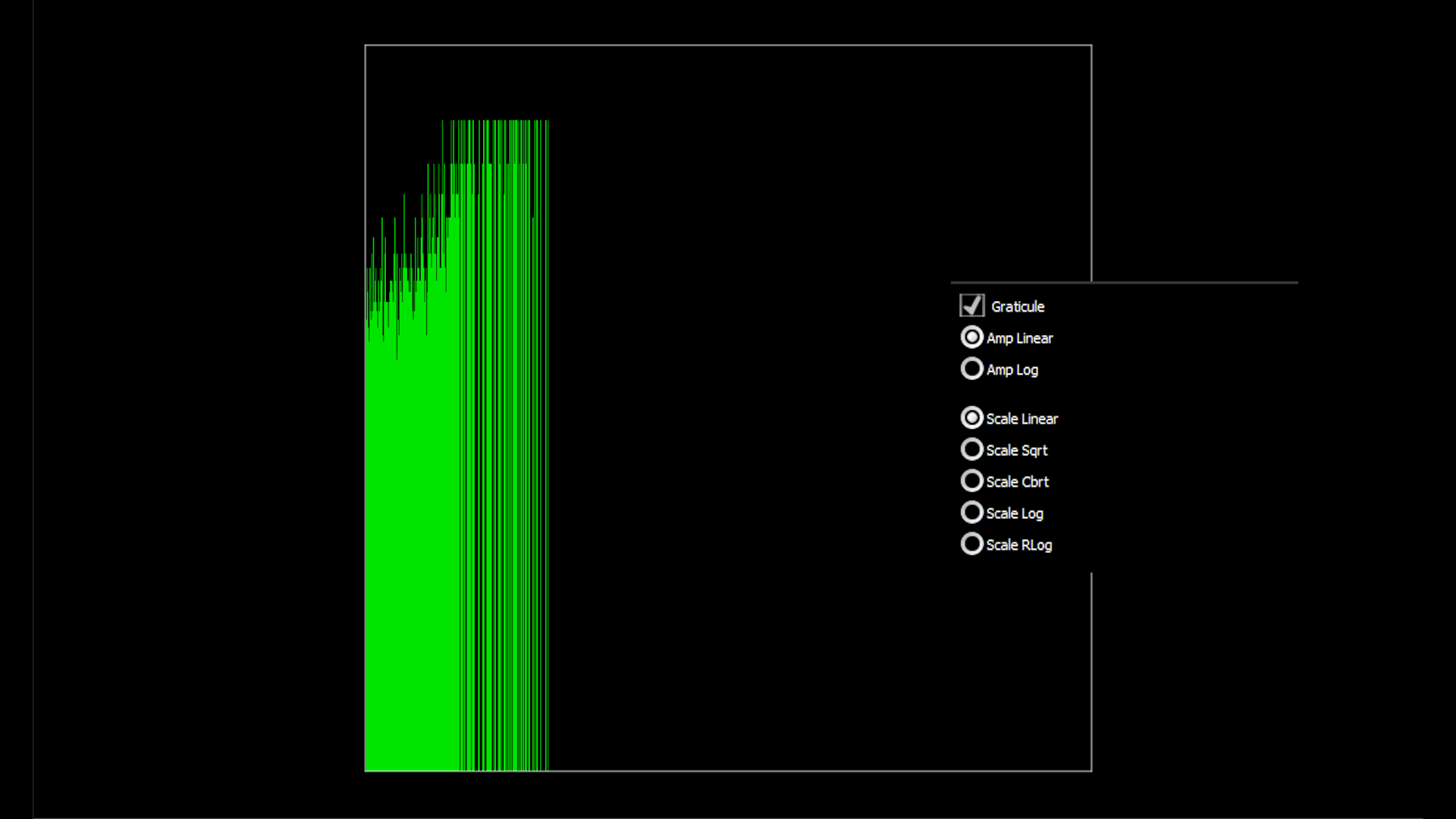 |
Audio Histogram - The audio histogram displays a bar chart of the levels of the components of an audio signal. The amplitude may be set to linear or logarithmic. The scale may be set to linear, square root, cube root, logarithmic, or reverse logarithmic. | 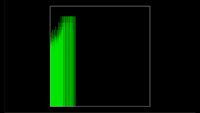 |
|
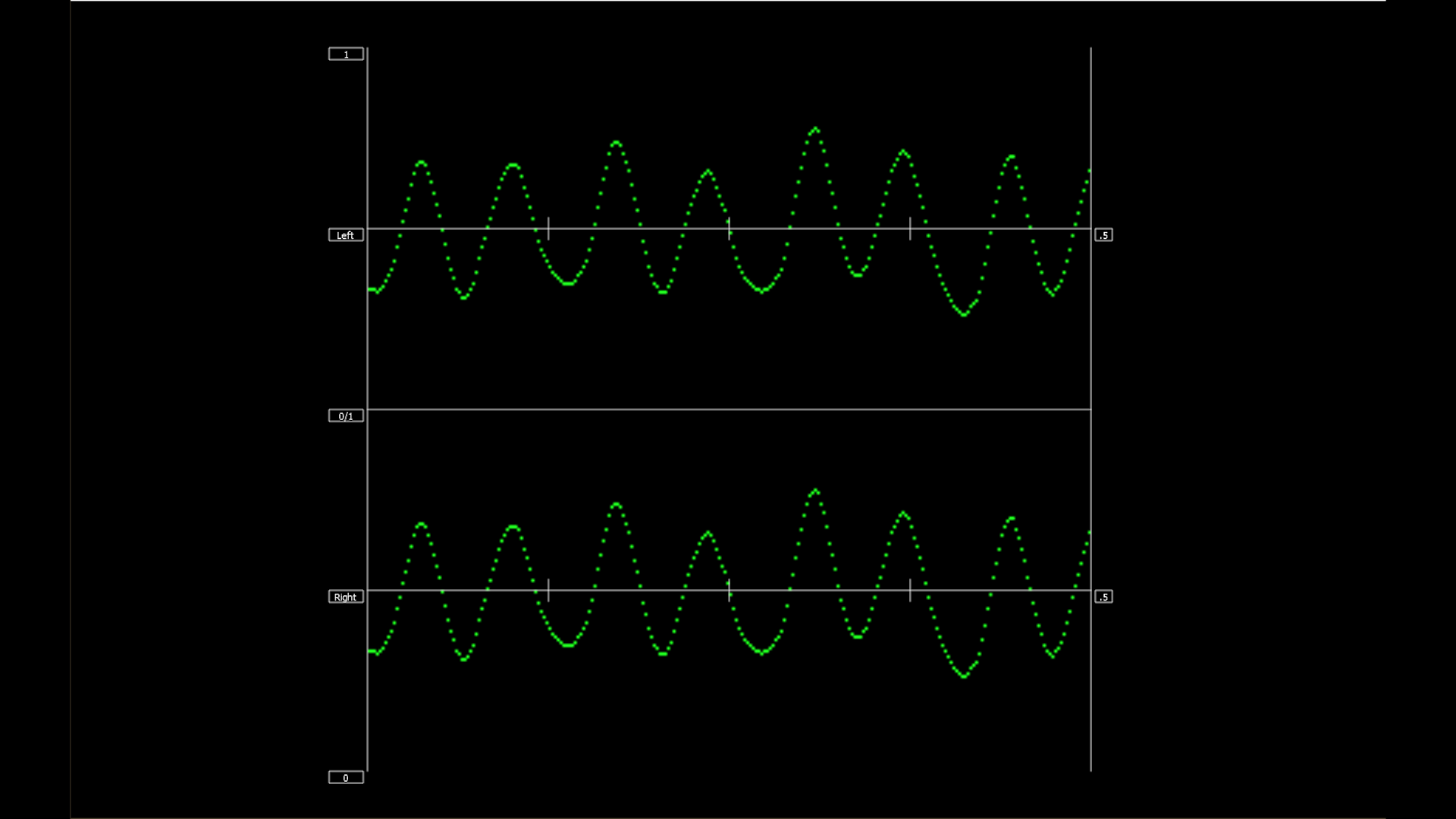 |
Audio Wave - The audio wave scope displays the selected pair's levels as a standard waveform, left channel on top and right channel on the lower half. The window shows one video frame's worth of audio, which would be 33.3ms in 29.97 video, or 1601/1602 samples of audio per right/left. For 25 fps it would be 1920. |  |
|
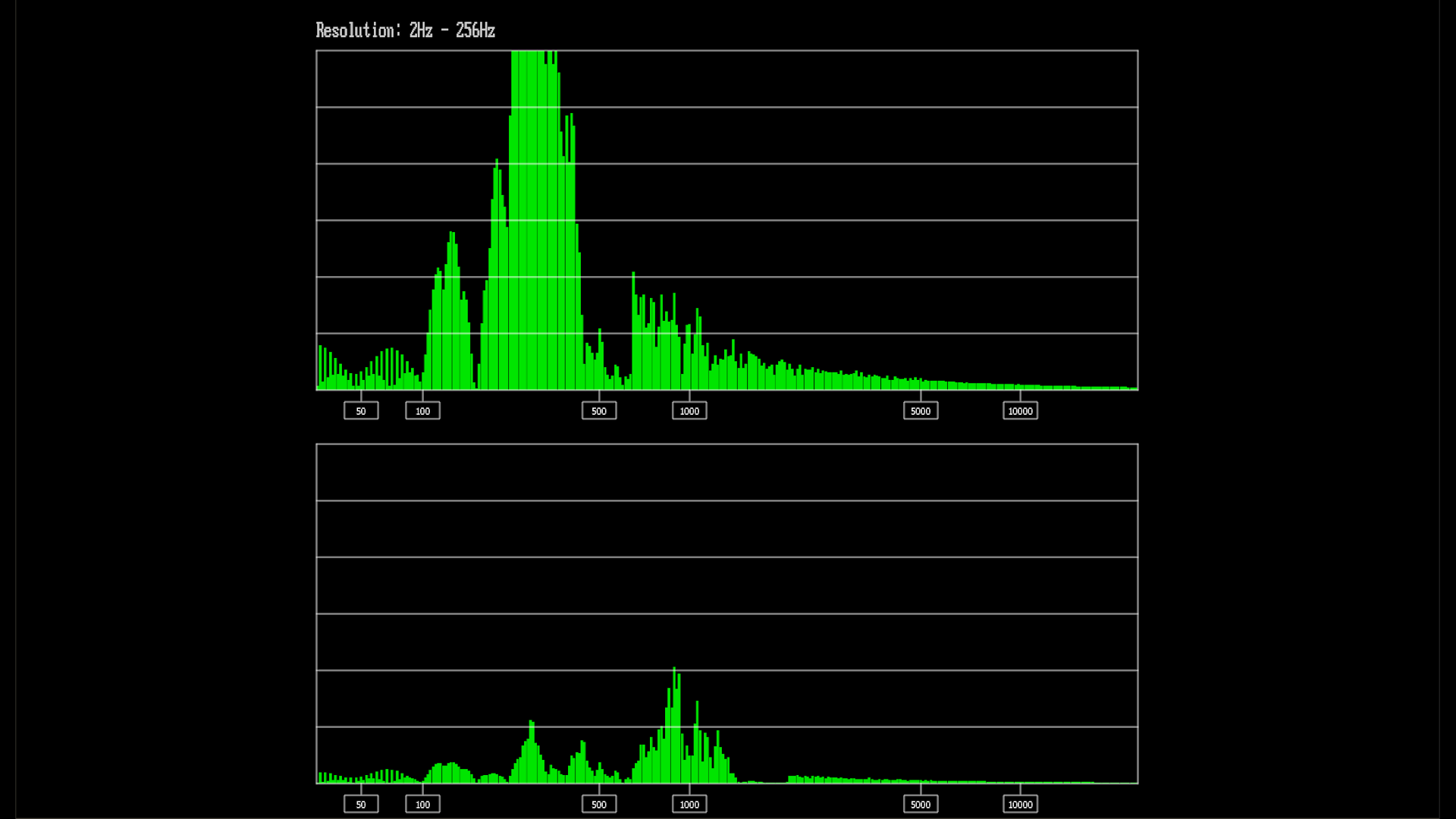 |
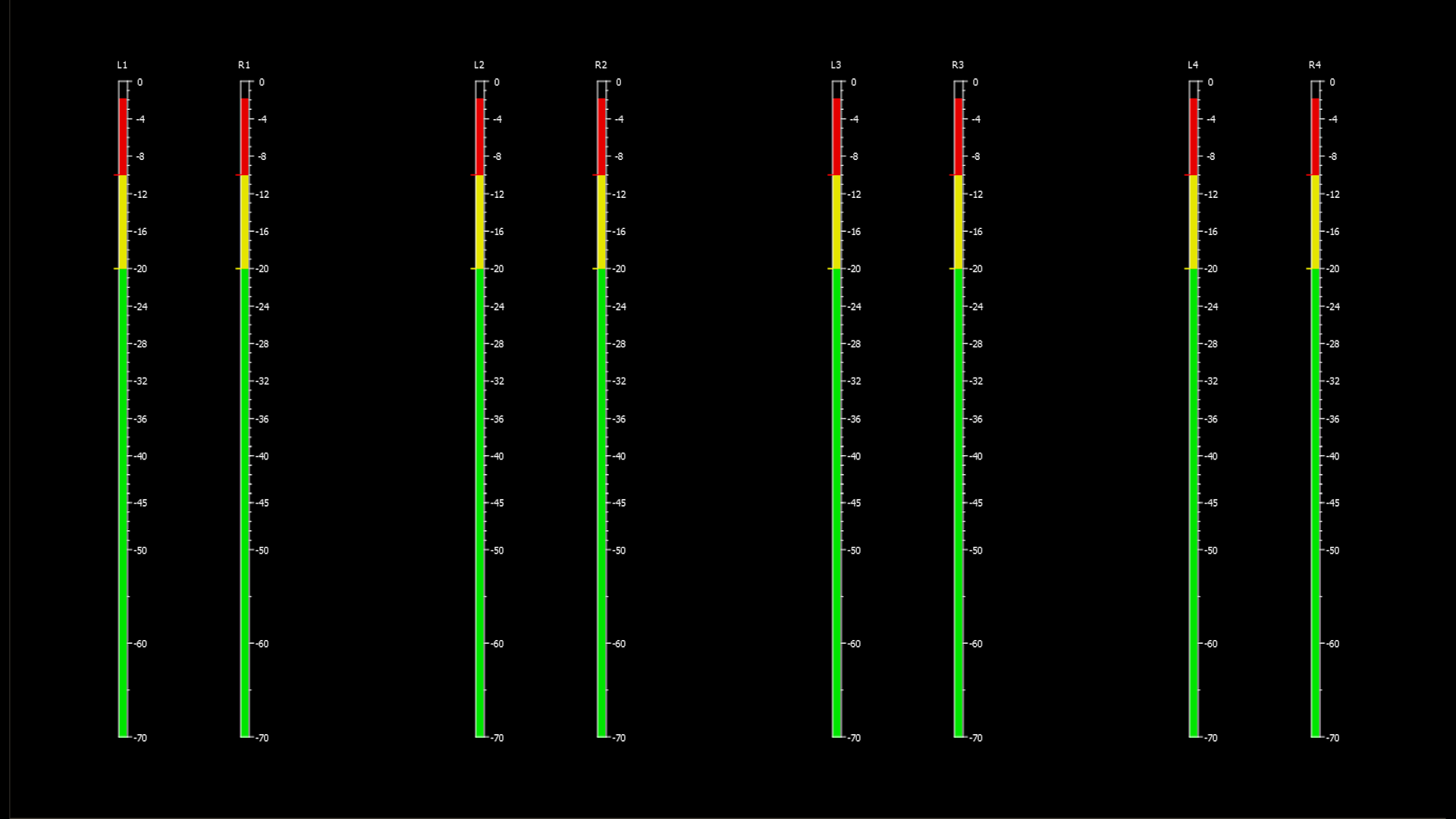
Audio Spectrum - The audio spectrum display shows the audio levels at each point within the entire (audible) audio spectrum for the selected pair. Windowing and scaling functions can be applied to simulate the response of the human ear more closely. | 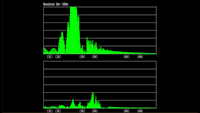 |
|
 |
Audio Meters - For monitoring and analysis of multichannel audio, a full set of up to 16 audio meters is provided. The scale may be set to dbFS DIGITAL, SMPTE dbVU, or EBU dbVU. Warnings are produced for over and peaking levels, and MUTE is shown for silent channels. | 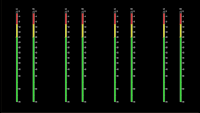 |
|
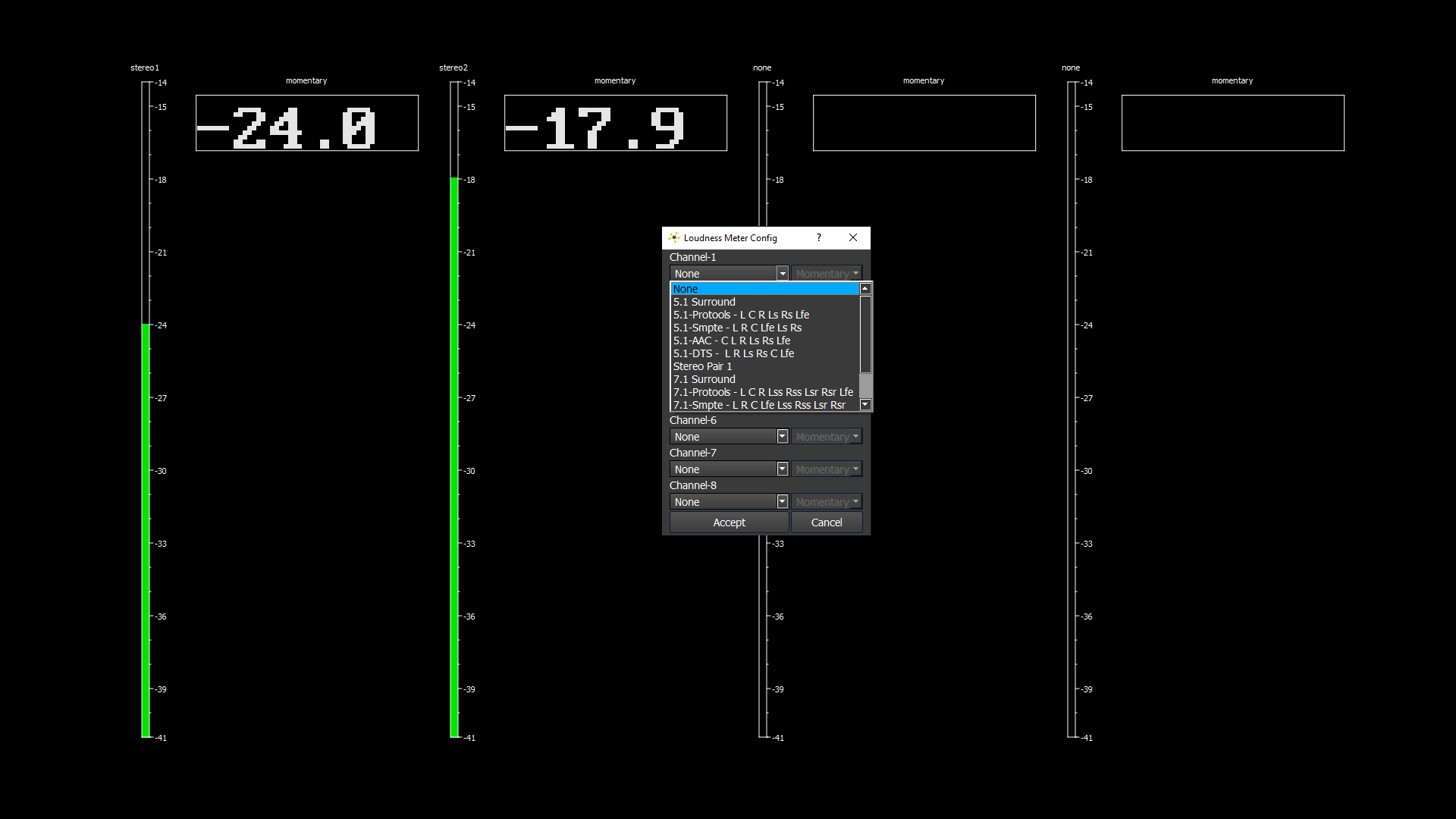 |
Loudness Meters - Loudness meters in EBU +9 or BBC +9 for loudness K-weighted to full scale for up to 16 channels of audio. Individually configurable. | 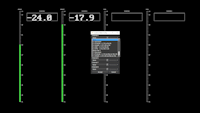 |
|
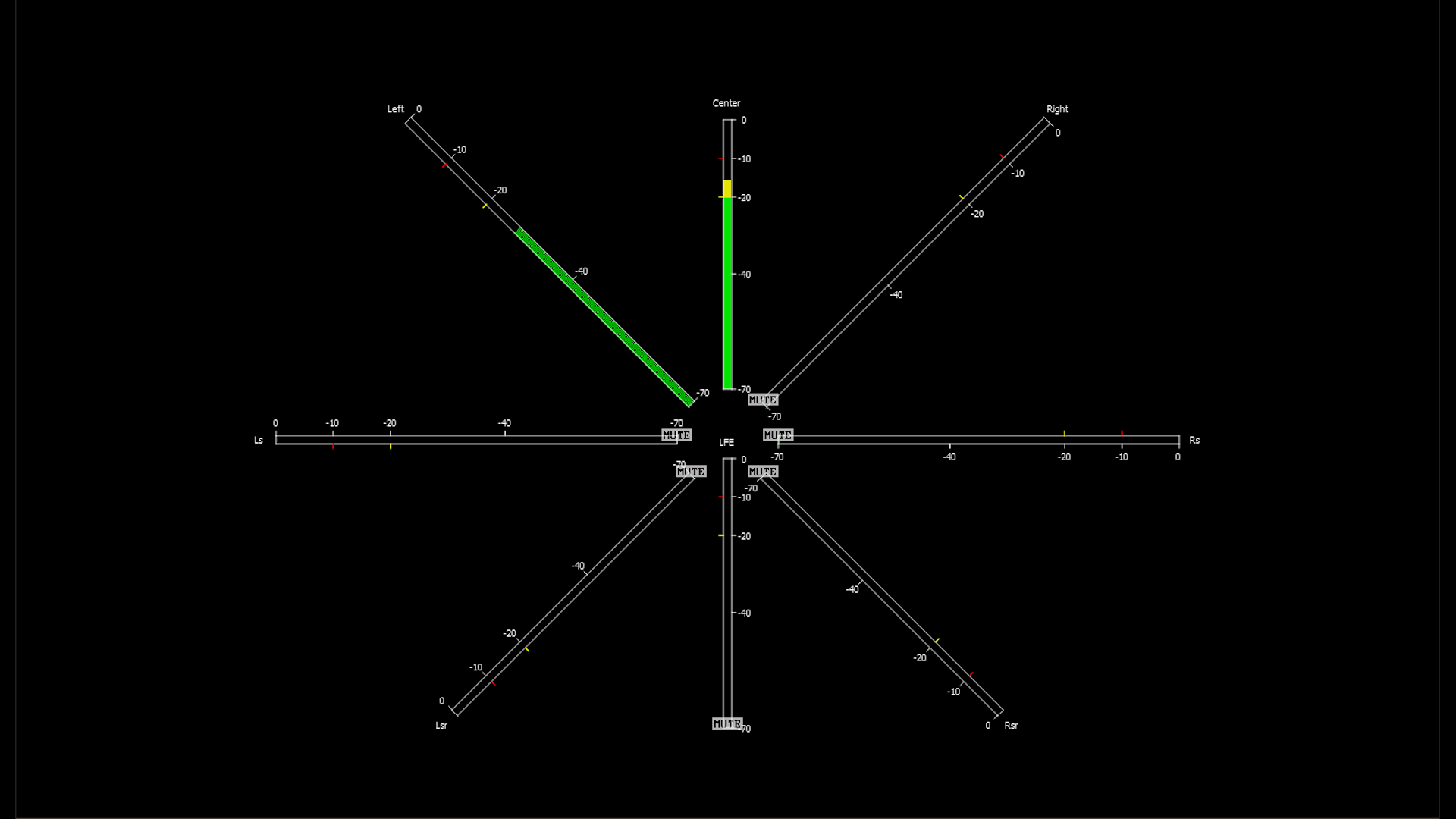 |
Surround Meters - 5.1 and 7.1 audio meters for surround sound workflows. SMPTE, ProTools, AAC, DTS, EXT, and Dolby setups supported. |  |
|
Data
Data Analysis Tools
| (click button to view scope) | |||
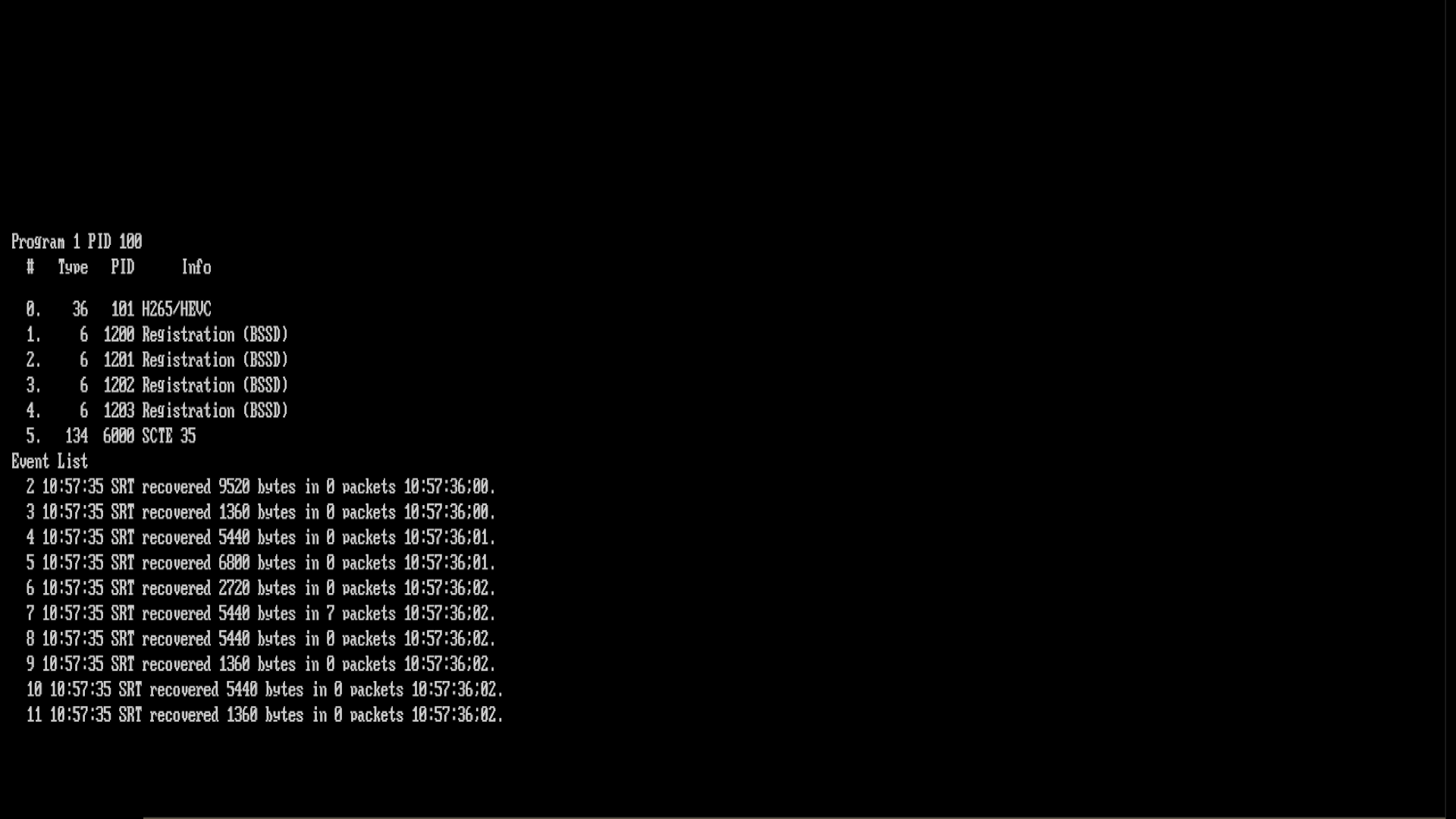 |
Stream Info - The Stream Info shows details for incoming IP streams, including number of flows, Type, PID, and Info. An event list shows time aligned details regarding packet handling. |  |
|
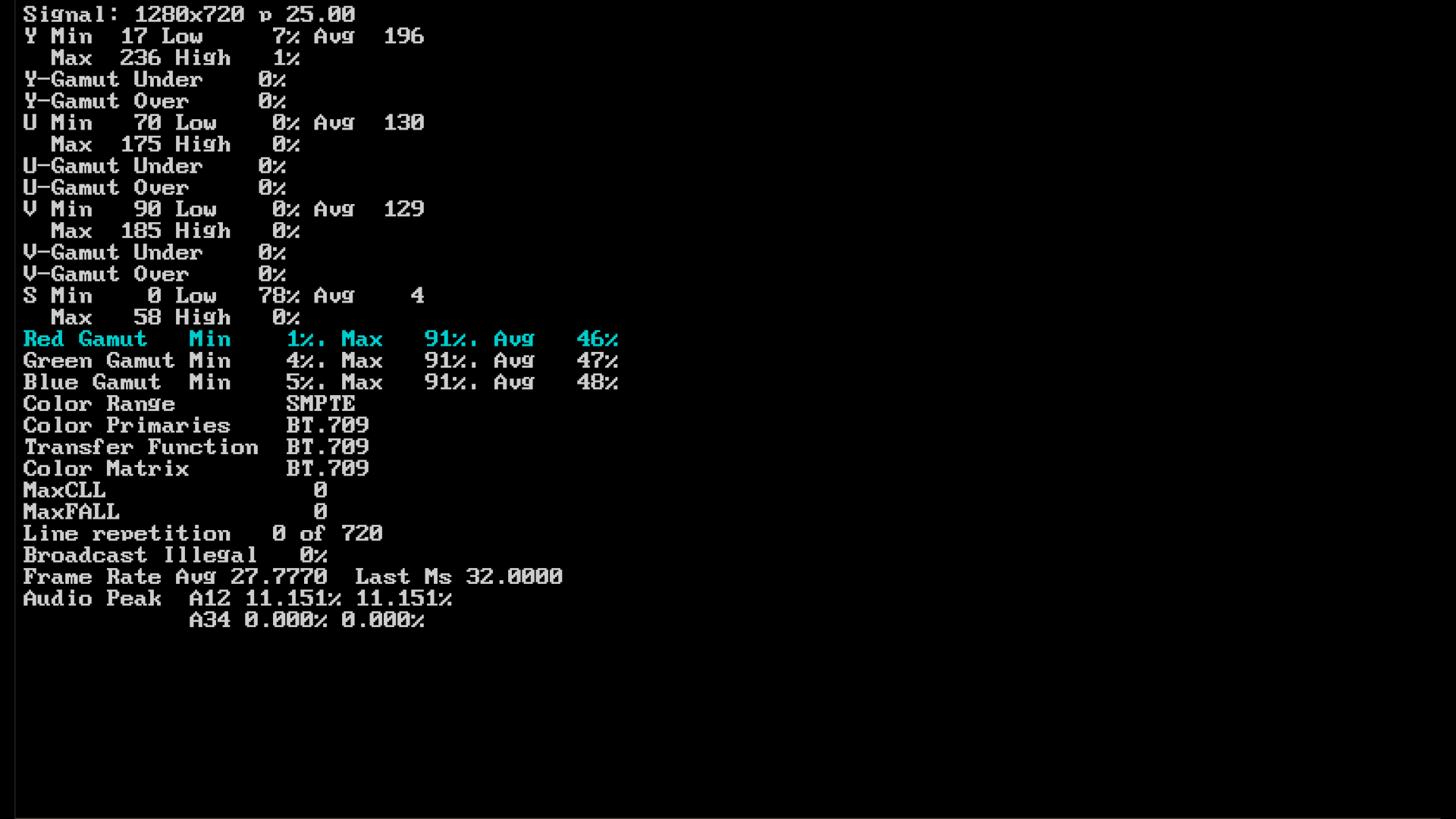 |
Status - The Status view presents real time data on the overall signal in terms of gamut, maximum and minimum chroma and luma, audio levels and MaxFALL/MaxCLL for HDR signals. Any issues detected by the status panel are automatically entered in the log file and window with time, type, source and reason. |  |
|
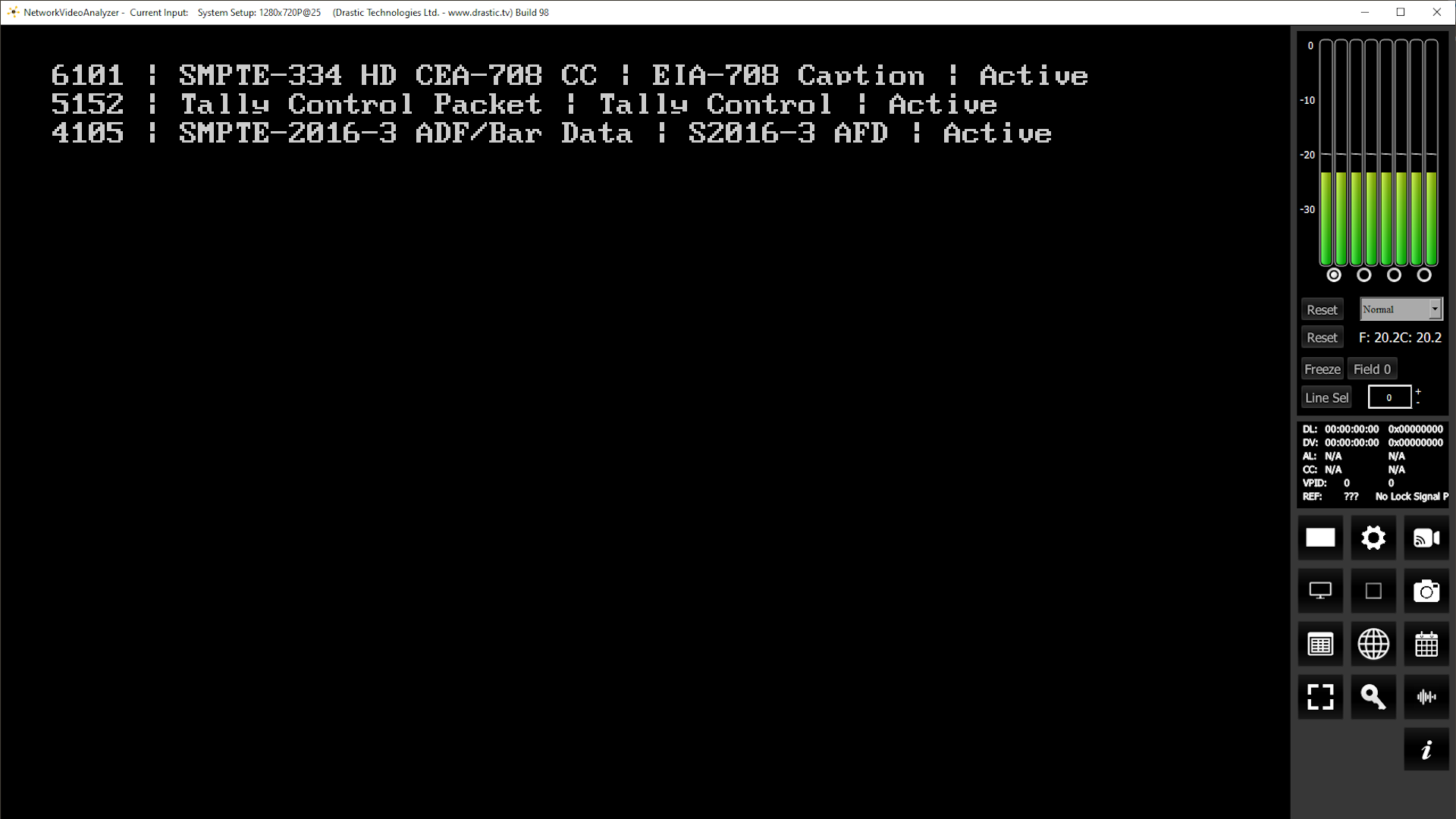 |
ANC Monitor - Time code streams, closed caption, and other ancillary data associated with the signal are displayed in rows. This view provides a look at each of the data streams without closing the other scopes. |  |
|
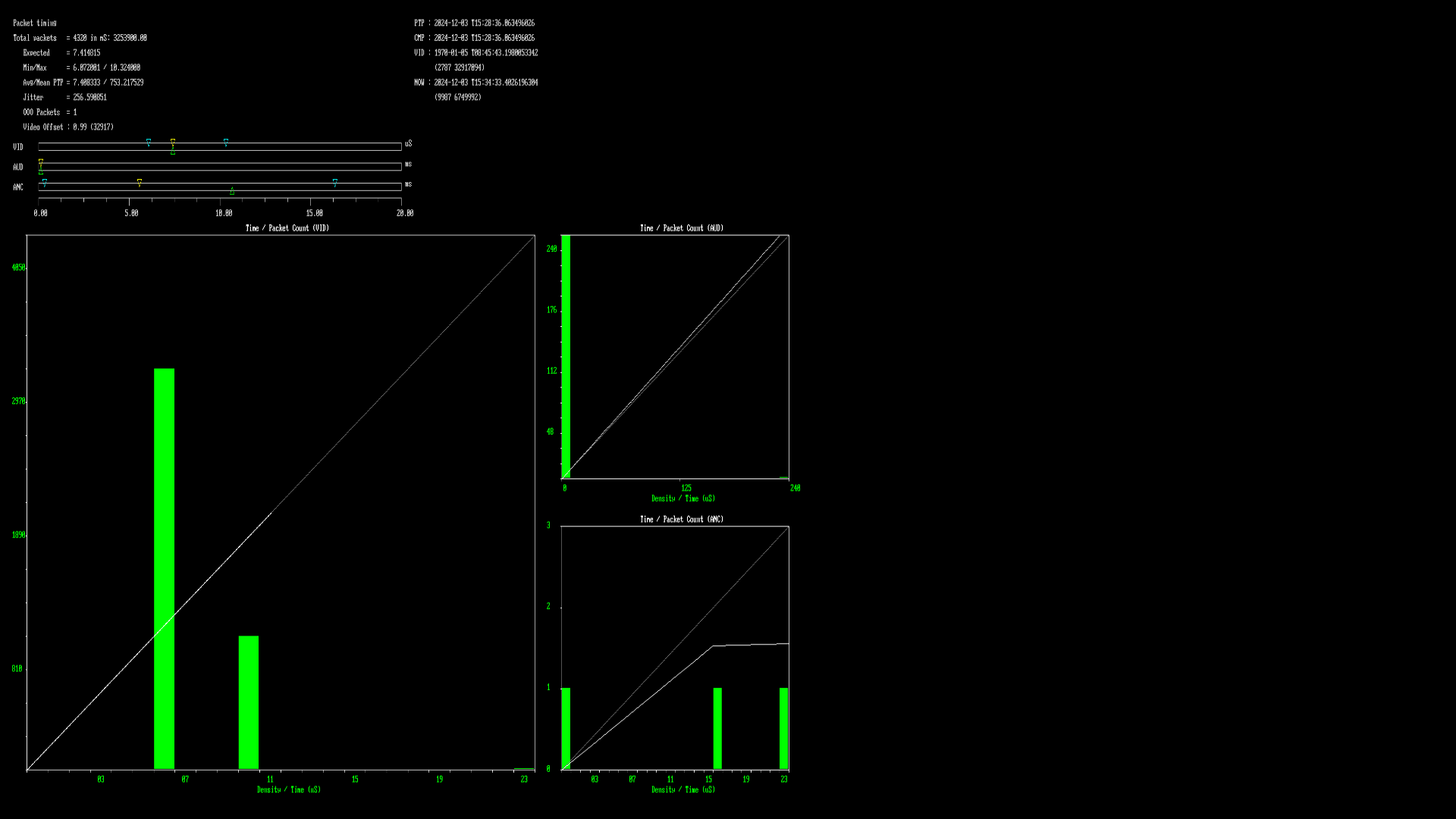 |
IP Timing - IP timing tracks the timing of the incoming SMPTE 2110 or 2022 packets on the network. The Min/Max/Avg/Mean of the distance between packets is calculated, as well as the expected value. Jitter and out of order packets are also tracked. A packet timing histogram is generated as well as a packet time vs ideal time line graph. | 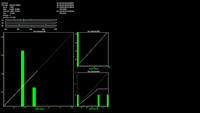 |
|
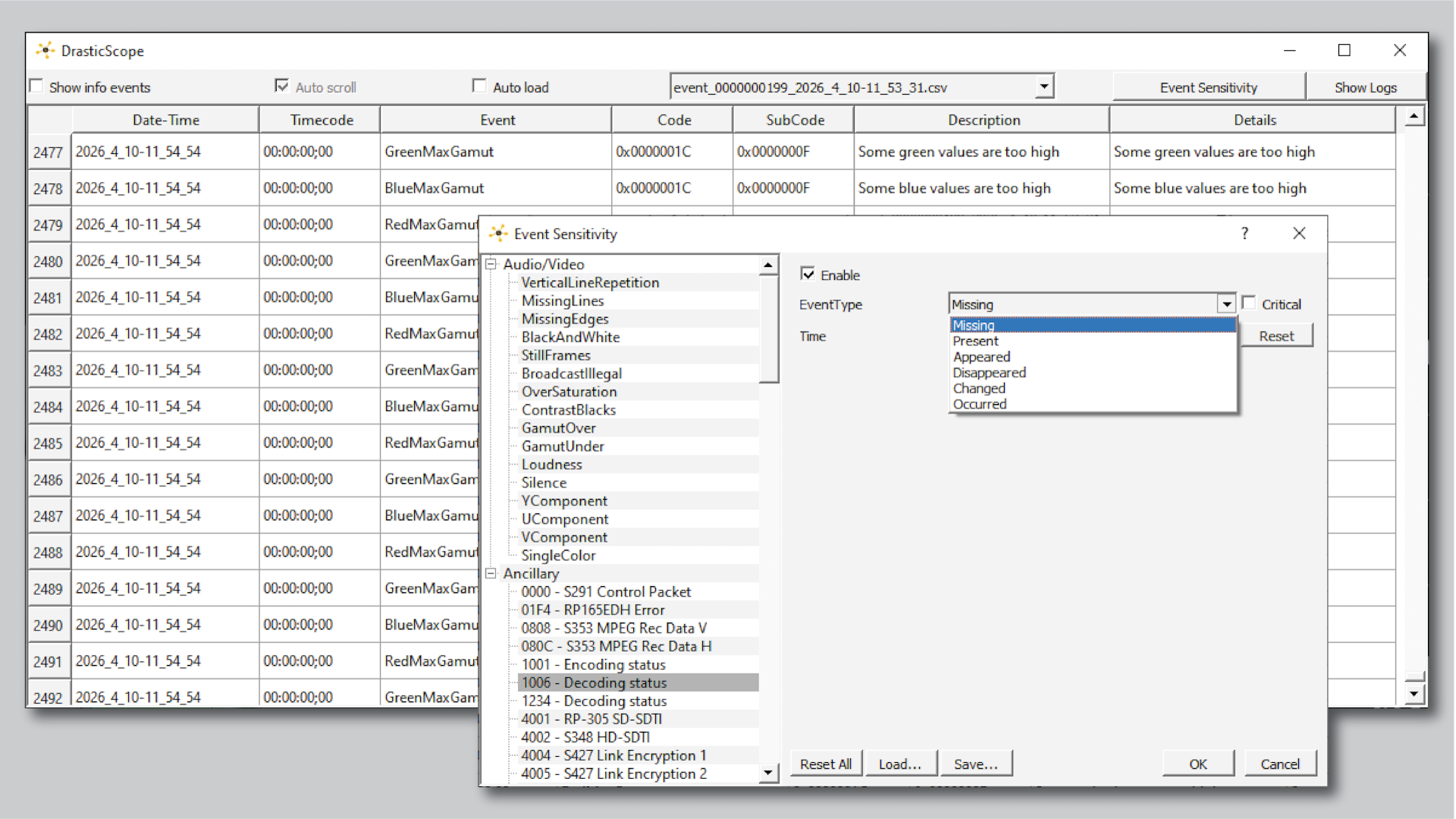 |
Event Log - an event log is saved along with the session, where a user can view messages about the signal. Sensitivity can be set for specific types of data, so warnings will arise depending on the condition that is set. |  |
|
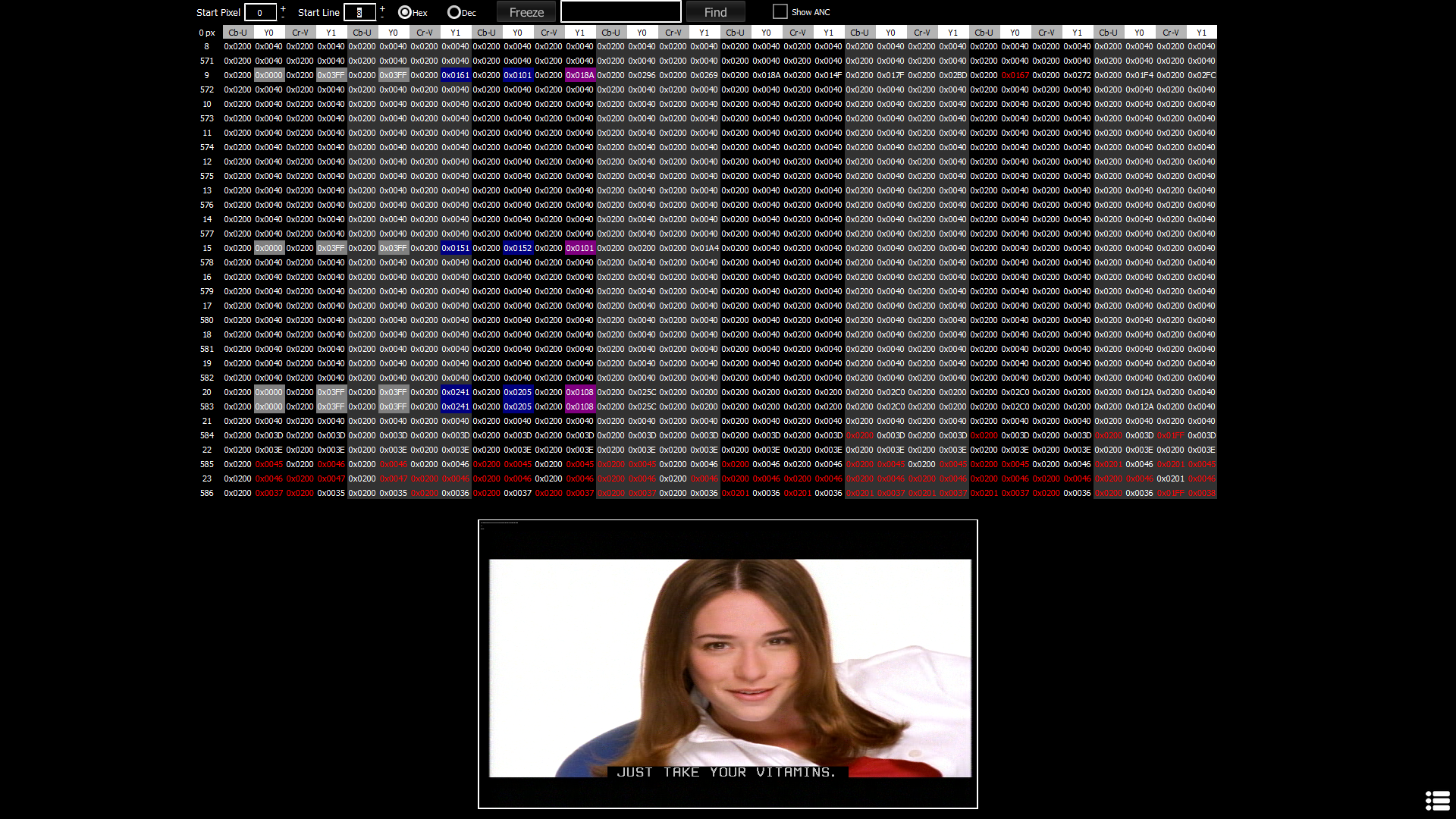 |
Data View - The Data view allows access to the raw pixel values being monitored on the HDMI or SDI input. Raw values are captured and displayed with no manipulation by the software. ANC Values are color coded, with Start values - white on gray, DID/sDID - white on blue, and Size - white on magenta. Pixel starts can be selected, along with lines, in the edit boxes above the data area. Show ANC provides a quick view of ancillary data streams. | 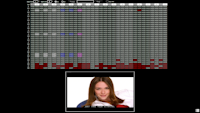 |
|
Inputs
Inputs
| Set up an input by selecting the type. Each input is owned by a Worker, and can be output through multiple scopes, as well as to multiple destinations. | ||
 |
Specify an Application as an input. Designed to monitor the output of a selected active window. | |
 |
Open a File in the player and view its signal parameters. | |
 |
View the SDI output of a supported AJA, Bluefish444, Blackmagic, DekTec, or Deltacast board. Drastic supports a wide range of excellent hardware devices from various manufacturers. For a look at the options, please view our Supported Hardware Page. | |
 |
View the HDMI output of a supported video board or device. | |
 |
View the output of a supported UVC/DirectShow/UVC device. | |
 |
View a selected CDI stream. CDI [Cloud Digital Interface] is an advanced, fully uncompressed, protocol for use within Amazon VMs. It transports video in a number of formats, as well as audio, time code and other metadata. | |
 |
View a selected MXL stream. MXL refers to the Media eXchange Layer of the Dynamic Media Facility (DMF) reference architecture. | |
 |
View a selected NDI stream. NDI [Network Device Interface] is one of the most widely adopted video over IP protocols. It requires a device name and a source name to access NDI streams. | |
 |
View a selected OMT stream. OMT [Open Media Transport] is an open-source network protocol for high performance, low latency video over a local area network. | |
 |
View a selected RIST stream. RIST [Reliable Internet Stream Transport] streams are UDP based self correcting connections. Drastic currently supports Simple, and Main profiles. | |
 |
View a selected RTP or UDP stream. UDP [User Datagram Protocol] and RTP [Real-time Transport Protocol] streams can be elementary video or audio streams, or more commonly a transport stream with PMT/PAT (Program Association Table/Program Mapping Table) and a number of streams within it. | |
 |
View a selected SRT stream. SRT [Secure Reliable Transport] streams contain a transport stream with PMT/PAT and a number of streams within it. For SRT you can specify an address and a port. Drastic supports all three modes for SRT: listener, caller and rendezvous. | |
 |
View a selected ST-2022 stream. View details about SMPTE protocols, along with some related technical documents, here. | |
 |
View a selected ST-2110 stream. View details about SMPTE protocols, along with some related technical documents, here. | |
 |
View the direct output of an editor. | |
 |
View the output of Drastic's ScopeDirect plugin. There are ScopeDirect plugins for Adobe, Avid, DaVinci/OpenFX, Assimilate, and AvVr3D (UnReal Engine) editors. | |
Technical
Technical
Input Sources
Application
CDI
Edit Direct
File
HDMI
MXL
NDI
OMT
RIST
RTP/UDP
ScopeDirect
SDI
SRT
ST-2022
ST-2110
UVC
Color Matrix
BT.709
BT.470BG
SMPTE-170M
BT.2020
Color Primaries
BT.709
BT.470M
BT.470BG
SMPTE-170M
SMPTE-240M
BT.2020
SMPTE-428
DCI P3
Transfer
SDR - standard dynamic range
PQ/HDR10 - high dynamic range max 10,000 nits
HLG - hybrid log gamma range max 1,000 nits
Frame Type
Interlaced – send alternating even, then odd, numbered lines of a frame as fields.
Progressive – send whole frames at once, reading the lines from top to bottom.
Segmented Frame – send PsF frames as output.
Video Size
720x480 (NTSC)
720x576 (PAL)
1280x720 (HD)
1920x1080 (HD)
2048x1080 (2K)
3840x2160 (4K)
4096x2160 (4K Cinema)
7680x4320 (8K)
8192x4320 (8K Cinema)
Frame Rate
23.98
25
29.97
30
50
59.94
60
Compression
10 bit YUV
RGB
RGBA
8 bit YUV
Resources
Resources
Download NetXScope
Download NetXScope Software |
||
| NetXScope - coming soon, ask for a demo | ||
| NetXScope installs in demo mode, with limited functionality. To unlock the full feature set of the software you will need at least a temp license. On first run there should be an automated option to obtain a temp license for testing. In any case you can generate a site code and send it to us at: |
||
Resources |
||
End User License Agreement |
||
| International |  |
|
| Canadian |  |
|
Drivers |
||
| AJA drivers (18.x) |  |
|
| Blackmagic Design drivers (15.x) | |
|
| Bluefish444 drivers (6.3.2.2) | |
|
Free Utilities |
||
| Download NMOS QuickConnect utility for Windows |  |
|
| Download FindDevices utility for Windows | |
|
Documentation |
||
| NetXScope manual - coming soon |  |
|
Sales Details |
||
| Pricing and sales details for NetXScope. |  |
|
Trademarks, Registered Trademarks, and Copyrights
Trademarks, Registered Trademarks, and Copyrights
Avid Technology, Inc. - Avid Media Composer®, Avid MediaCentral®, Avid Interplay®, ProTools®, and Avid NewsCutter® are either trademarks or registered trademarks of Avid Technology, Inc. or its subsidiaries in the United States and/or other countries.
Blackmagic Design Pty. Ltd. - DaVinci Resolve, DaVinci Fusion, UltraStudio, DeckLink, Intensity Pro 4K, UltraScope, and RED are either trademarks or registered trademarks of Blackmagic Design Pty. Ltd. or its subsidiaries in the United States and/or other countries.
Bluefish Technologies - Bluefish444, IngeSTore, Symmetry, Kronos, Epoch, Epoch:Neutron, Fury, Lust, Vengeance HD, Deepblue, Envy SD, and Epoch:SuperNova are trademarks of Bluefish Technologies
Bridge Technologies Co AS - Bridge Technologies is a trademark of Bridge Technologies Co AS
Dolby Laboratories – Dolby, Dolby Vision, the double-D symbol, and Millicast are registered trademarks of Dolby Laboratories.
Drastic Technologies, Ltd. – trademarks specified here.
DTS - DTS, the Symbol, and DTS and the Symbol together are registered trademarks of DTS, Inc.
Epic Games, Inc. - UNREAL ENGINE is a trademark of Epic Games, Inc..
Lynx Technik AG - LYNX TECHNIK AG is a trademark of LYNX TECHNIK AG.
Matrox Electronic Systems, Ltd - Matrox and Matrox product names are registered trademarks and/or trademarks of Matrox Electronic Systems, Ltd.
Society of Motion Picture and Television Engineers - SMPTE is a trademark of Society of Motion Picture and Television Engineers.
SRI International - SARNOFF CORPORATION is a trademark of SRI INTERNATIONAL.
Tektronix, Inc. - Tektronix® and all identified Tektronix trademarks and logos are the property of Tektronix, Inc. or its wholly-owned subsidiaries